DSWP Team Pattern
Overview
This pattern creates a series of team member profiles, alternating between white and light gray backgrounds. Each profile features a circular image, name, subtitle, and detailed biography in a two-column layout.
Important Note
Each pattern consists of several blocks. Only adjust the content and color block settings. The structural settings (padding and margins) are pre-configured for responsiveness. Modifying structural settings may break the pattern.
Pattern Components
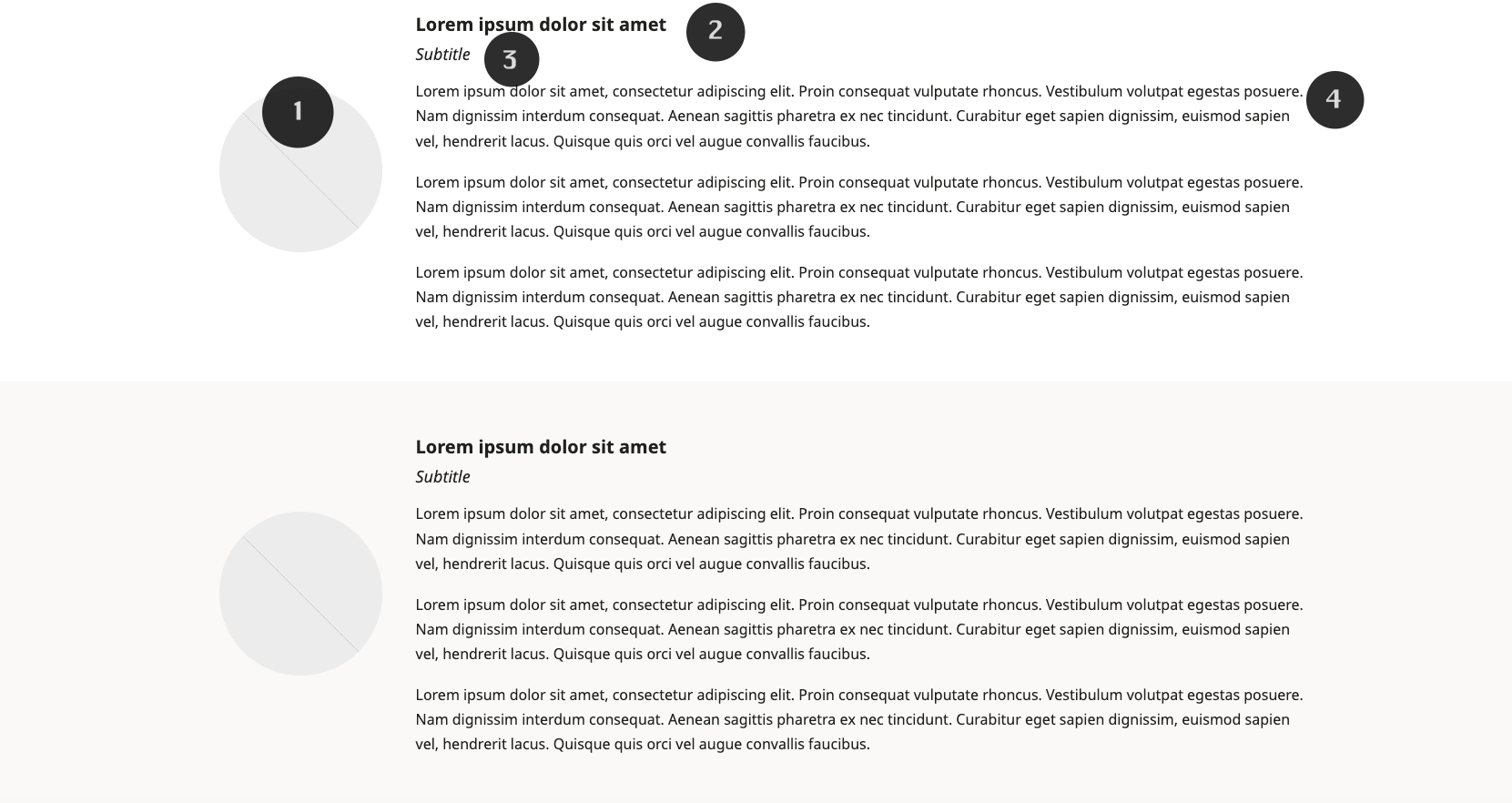
Each team member section contains:
Image
- 180px width circular image
- Aspect ratio 1:1
- Object-fit: cover
- Left-aligned
Heading
- H5 heading (2.0 line height)
Subtitle
- Italicized subtitle (H6 size)
Paragraph
- Three paragraphs of biography
Section Container
- Alternating backgrounds:
- White
- Light gray
Common Tasks
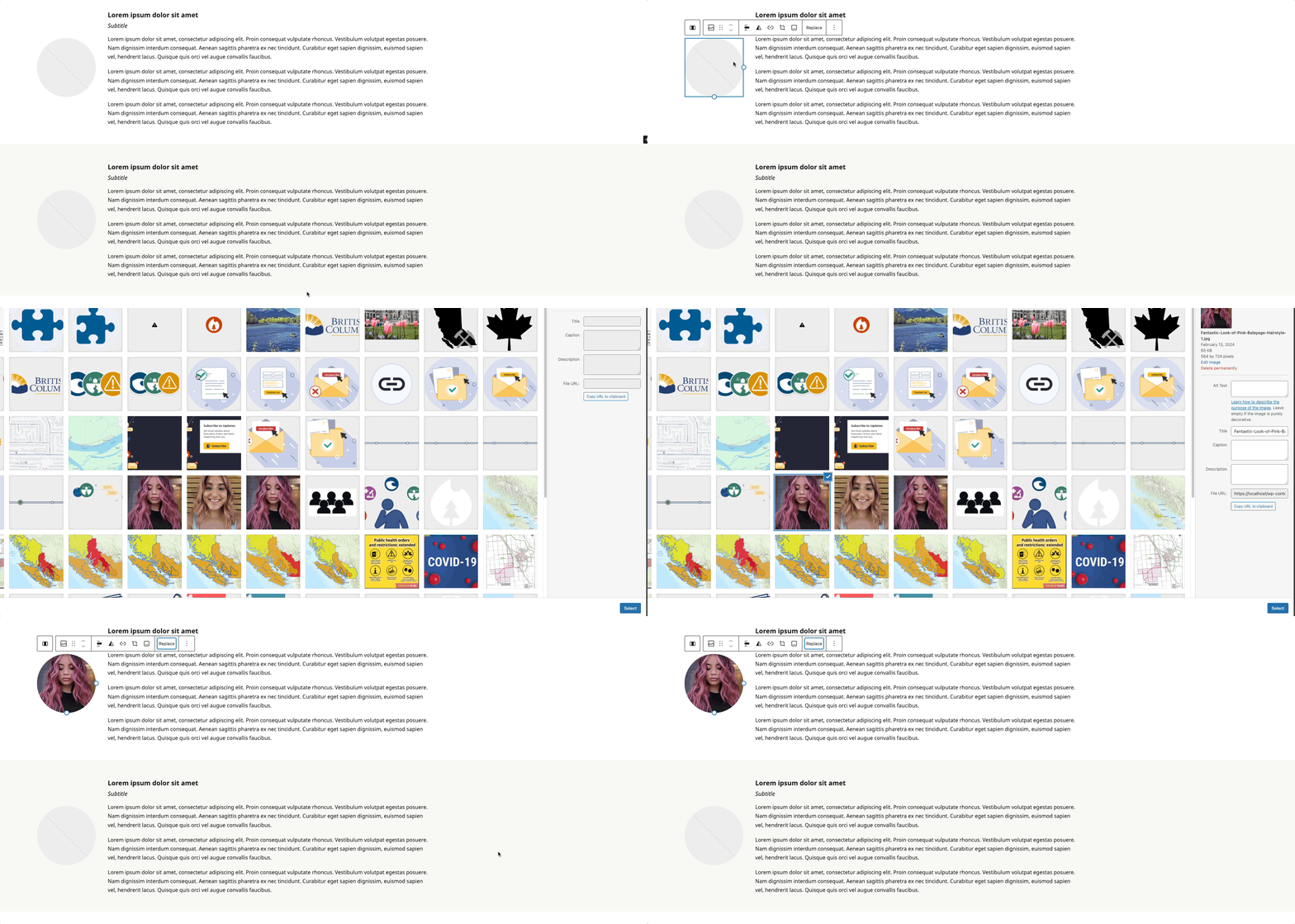
Profile Image
- Select the image block
- Click "Replace"
- Upload square image (automatically crops to circle)
- Maintains 180px width and 1:1 ratio
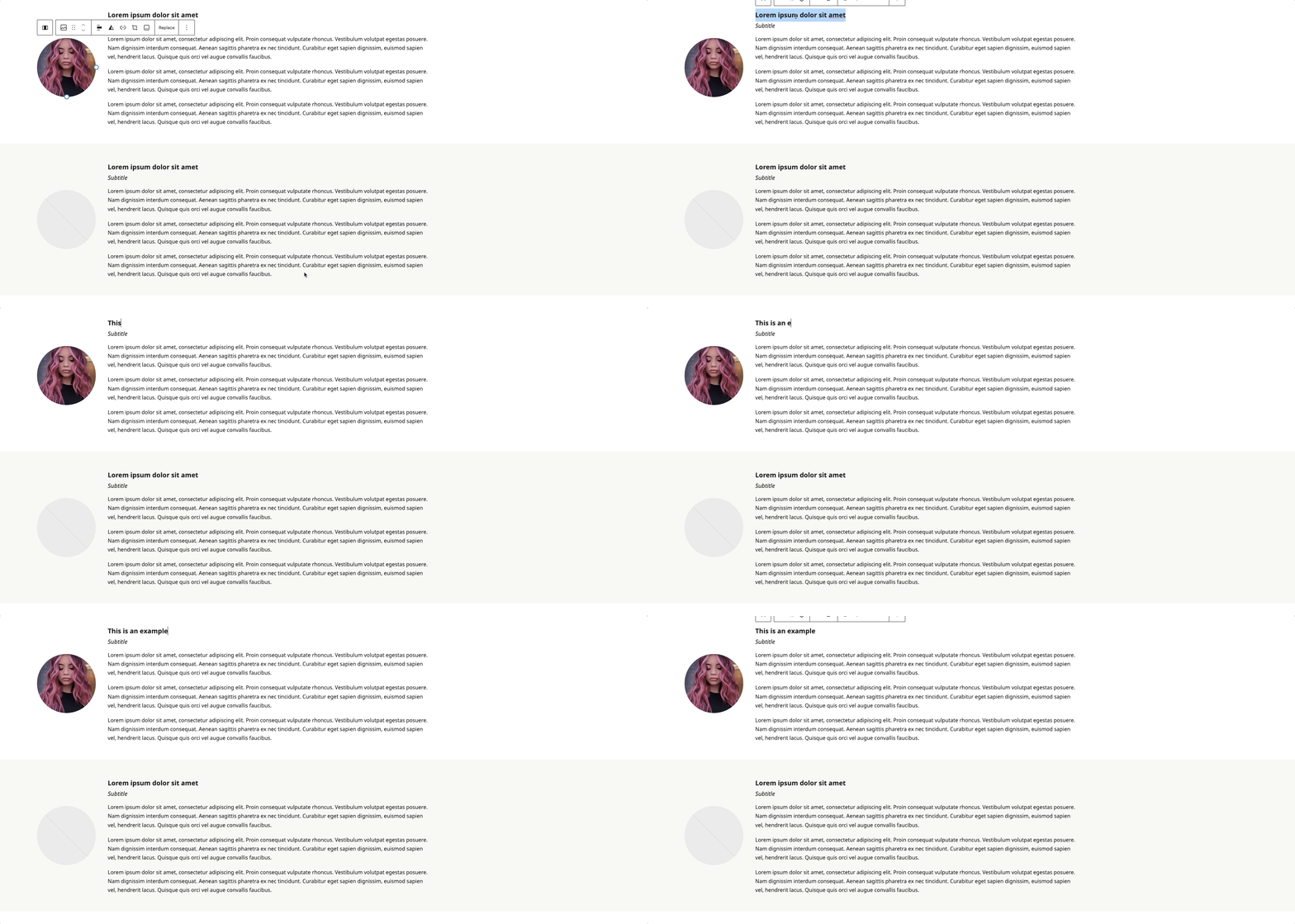
Modifying the Heading
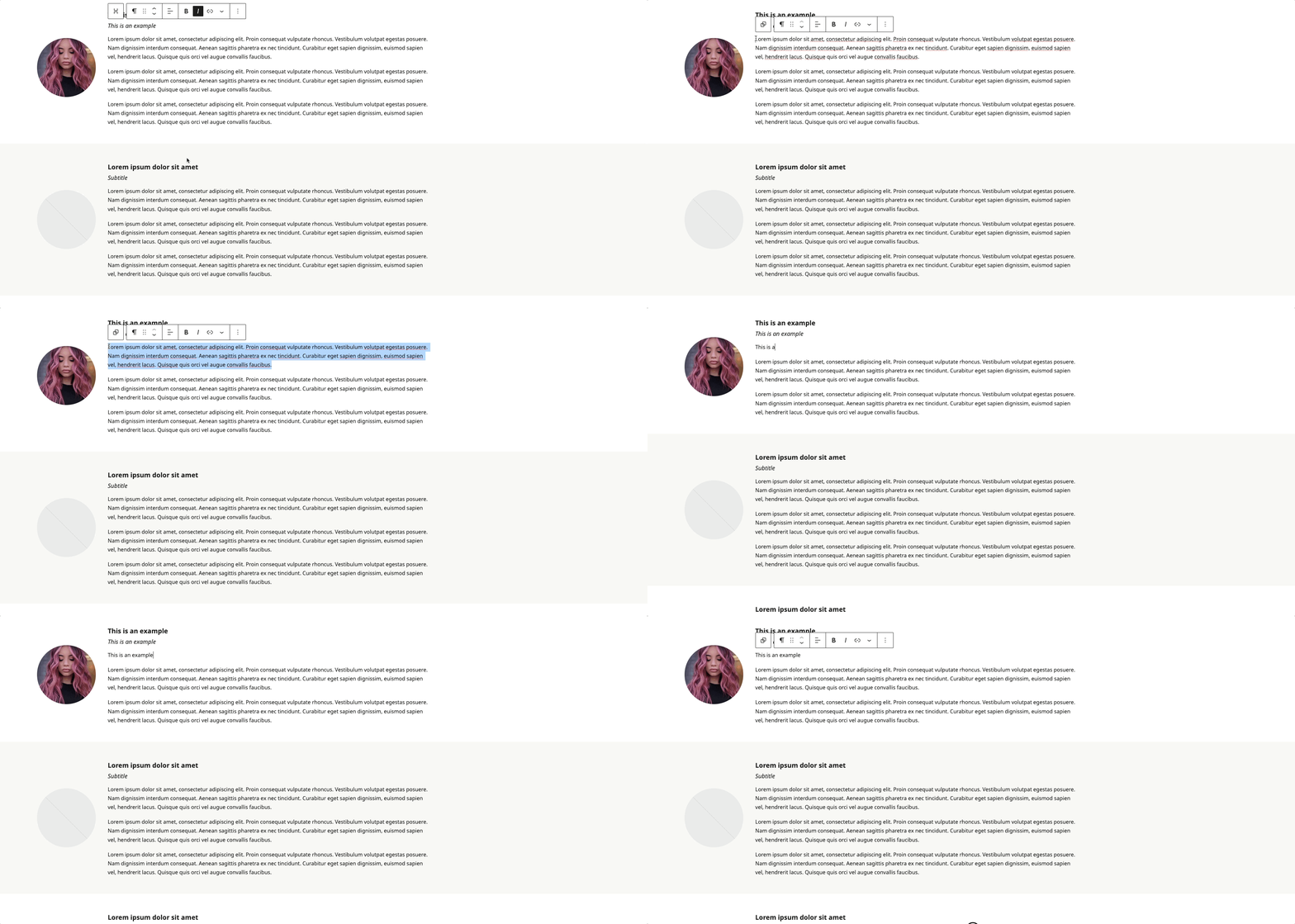
- Click on the heading text
- Type your new heading
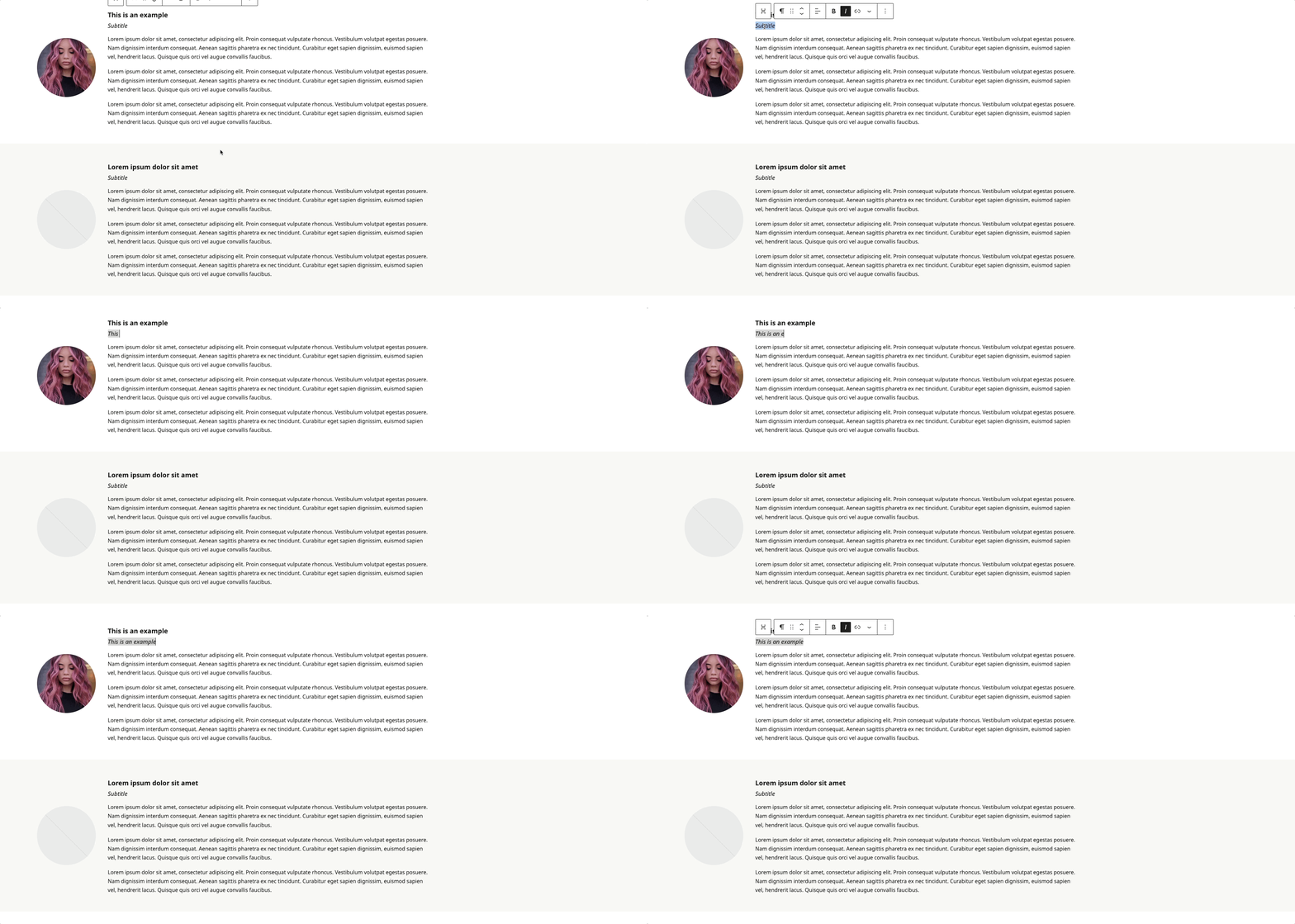
Modifying the Sub-Heading
- Click on the sub-heading text
- Type your new heading
Modifying the Paragraph
- Click to edit paragraph text
- Start Typing new content
To Add a Card
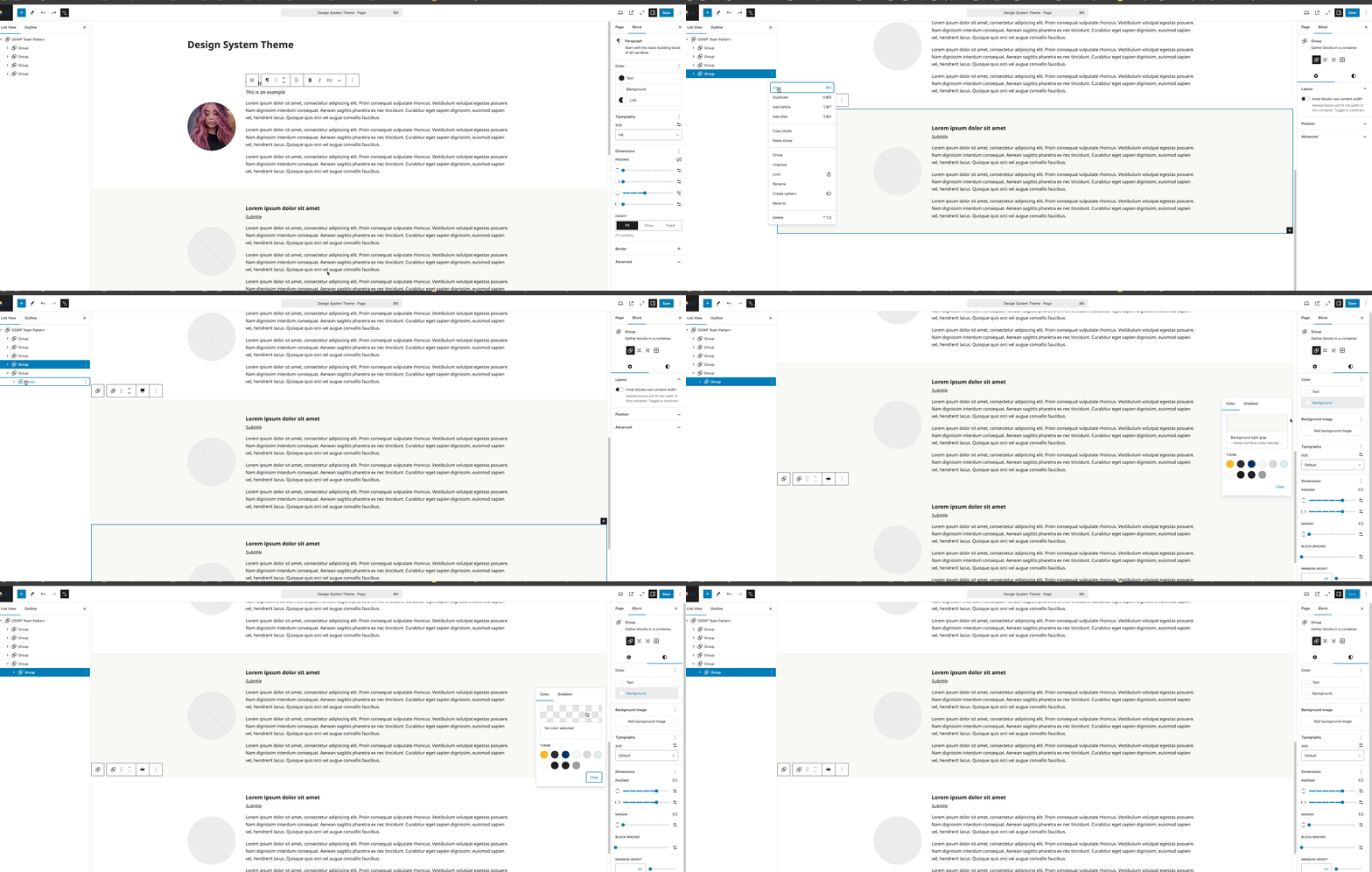
- Click the ellipses (⋮) next to any profile card (see gif below)
- Select "Duplicate"
- Expand the new profile to see the group a layer down
- Select block styles
- Select background
- This step depends on whether the previous profile has a background. If it has a background color, select clear in the color picker; otherwise, select "light gray".
Layout Considerations
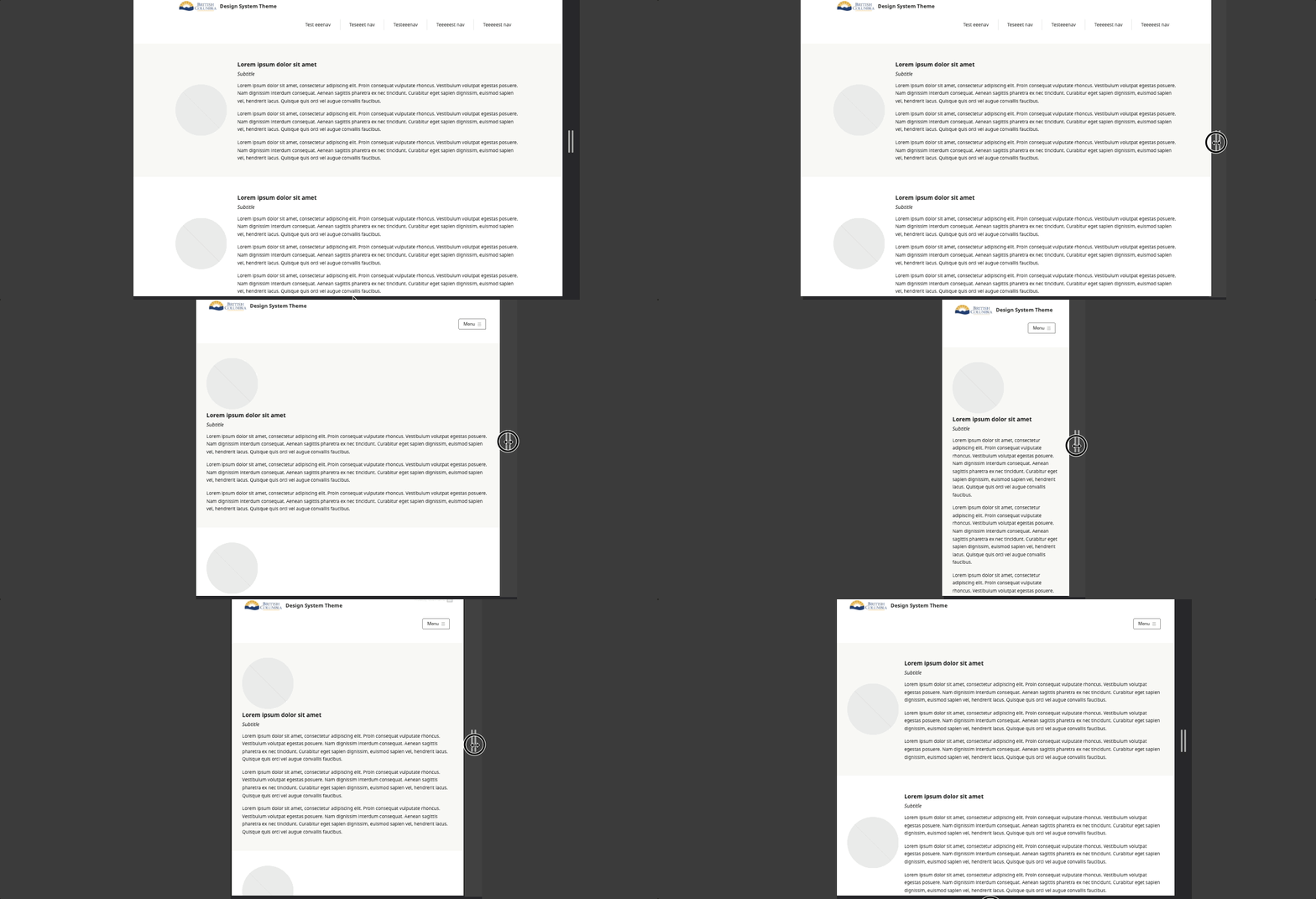
- Desktop: Side-by-side layout
- Tablet: Maintains side-by-side
- Mobile: Stacks with image above content left aligned
Block Documentation
For detailed instructions on modifying specific blocks, refer to WordPress's official documentation: