Content Security Policy (CSP)
Use this tool to control which sources your WordPress site can load for scripts, styles, images, fonts, media, XHR/WebSocket connections, and frames. Tight CSP rules improve security and reduce the risk of cross-site scripting (XSS).
The tool lives in:
- WordPress Admin → Design System → Content Security Policy
Click Save Settings to apply changes.
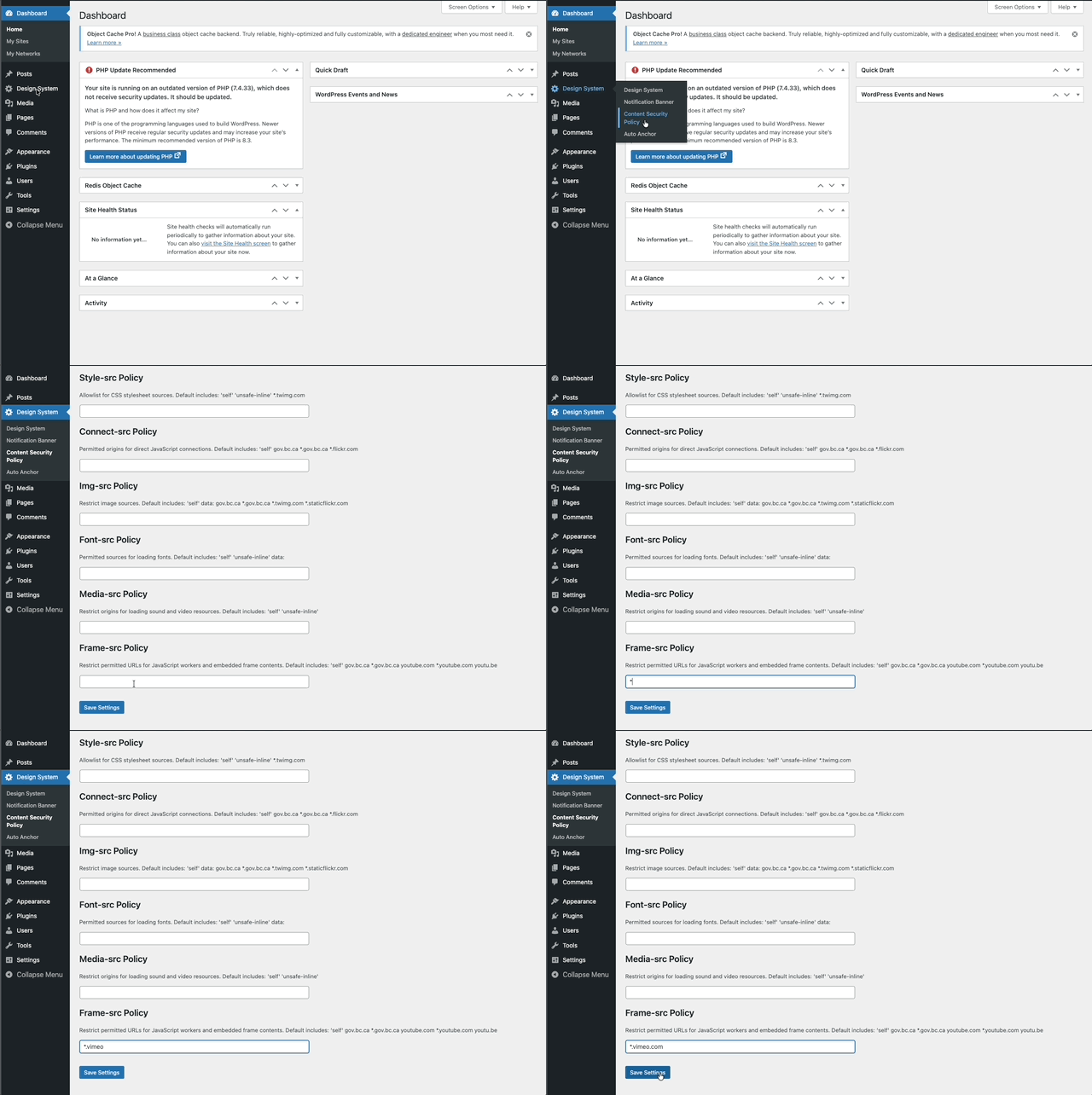
How the form works
- Each field accepts additional space-separated sources (no commas); these are added to the built-in sources shown in the helper text.
- If a field is left empty, the generated policy uses only its built-in sources.
- You can add:
- Keywords:
'self''none''unsafe-inline''unsafe-eval'data:blob:https: - Hosts:
example.comsub.example.com - Wildcards:
*.example.com
- Keywords:
- Use the least-privilege set you can. Prefer HTTPS. Avoid
'unsafe-inline'and'unsafe-eval'when possible.
To revert a directive to its built-in sources, clear the field and Save Settings. The built-in sources are always included, so these fields cannot replace or block a directive.
Directive reference
The defaults shown in the UI include the design system’s domains (e.g., gov.bc.ca, twimg.com, flickr domains, and YouTube for embeds).
Default-src Policy
- Fallback for all resource types without an explicit directive.
- Keep minimal. Add broad hosts here only if you can’t scope them to a more specific directive.
- Example additions:
https: cdn.example.com
Script-src Policy
- JavaScript files and inline JS.
- Prefer hosted files over inline scripts. Remove 'unsafe-inline'/'unsafe-eval' if your site doesn’t require them.
- Example additions:
cdn.jsdelivr.net cdn.skypack.dev www.googletagmanager.com www.google-analytics.com
Style-src Policy
- CSS files and inline styles.
- If you must allow inline styles, keep 'unsafe-inline'. Consider using hashed inline styles instead of broad allowance.
- Example additions:
fonts.googleapis.com cdn.jsdelivr.net
Connect-src Policy
- Fetch/XHR, WebSocket, EventSource, analytics beacons, and GraphQL endpoints.
- Example additions:
api.example.com *.sentry.io
Img-src Policy
- Images and favicons. data: allows inline base64 images.
- Example additions:
i.ytimg.com cdn.example.com data:
Font-src Policy
- Font files (woff, woff2, ttf). data: enables embedded fonts like
data:font/woff2;base64,d09GMgABAAAAAA...') - Example additions:
fonts.gstatic.com data:
Media-src Policy
- Audio and video files (not iframes).
- Example additions:
media.example.com
Frame-src Policy
- Origins allowed in iframes (and workers for some browsers).
- Example additions:
*.youtube.com youtu.be *.vimeo.com *.rumble.com
CSP recipes
- Google Fonts
- style-src:
fonts.googleapis.com - font-src:
fonts.gstatic.com data:
- style-src:
- YouTube/Vimeo embeds
- frame-src:
*.youtube.com youtu.be *.vimeo.com - img-src:
i.ytimg.com(for thumbnails)
- frame-src:
- Mapbox
- script-src:
api.mapbox.com - style-src:
api.mapbox.com - img-src:
api.mapbox.com - connect-src:
events.mapbox.com
- script-src:
- Generic CDN
- Add the CDN host to the specific directive you need (script-src, style-src, img-src, etc.), e.g.,
cdn.example.com.
- Add the CDN host to the specific directive you need (script-src, style-src, img-src, etc.), e.g.,
CSP testing
- Save Settings.
- Hard-refresh the page in your browser (Shift+Reload).
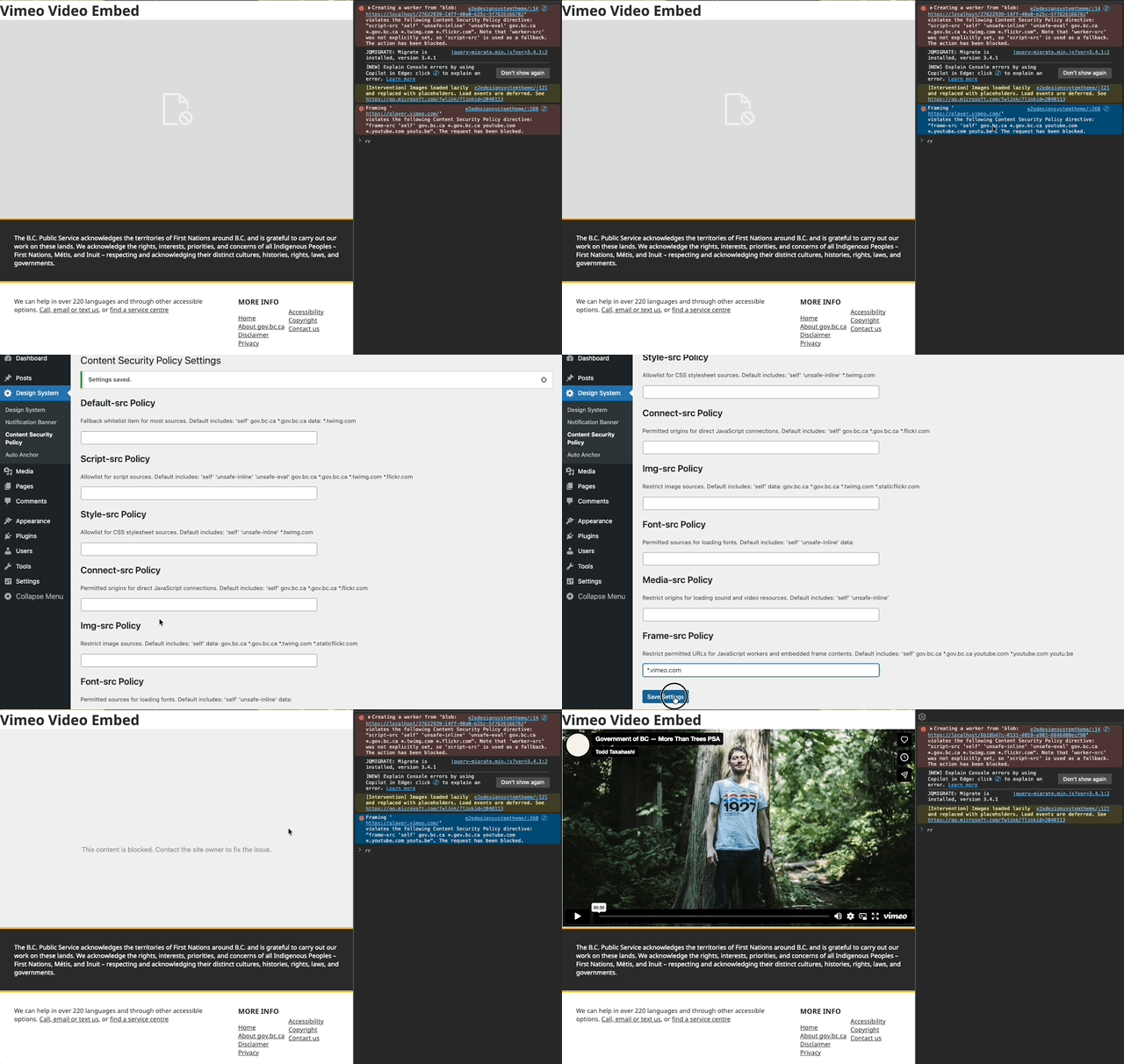
- Open DevTools → Console. Look for “Refused to connect/script/style from … because it violates the Content Security Policy”.
- Add the blocked origin to the correct directive and save again.
- Repeat until violations are gone.
If something still doesn’t load, verify the exact hostname in the violation message and add that host (or a wildcard like *.example.com) to the correct directive.
CSP FAQ
- How do I reset to defaults?
- Clear the field and click Save Settings.
- Can I disable a resource type completely?
- Enter 'none' in that directive and save.
- Do I need commas?
- No. Use spaces between entries.