Navigation Block
Add a site navigation menu to pages and posts. This block extends the WordPress core Navigation block with improved styling, submenu handling, and a mobile overlay menu.
Find it in:
- Block Inserter (+) → Design System → Navigation
After inserting the block, select a WordPress Menu in the block settings.
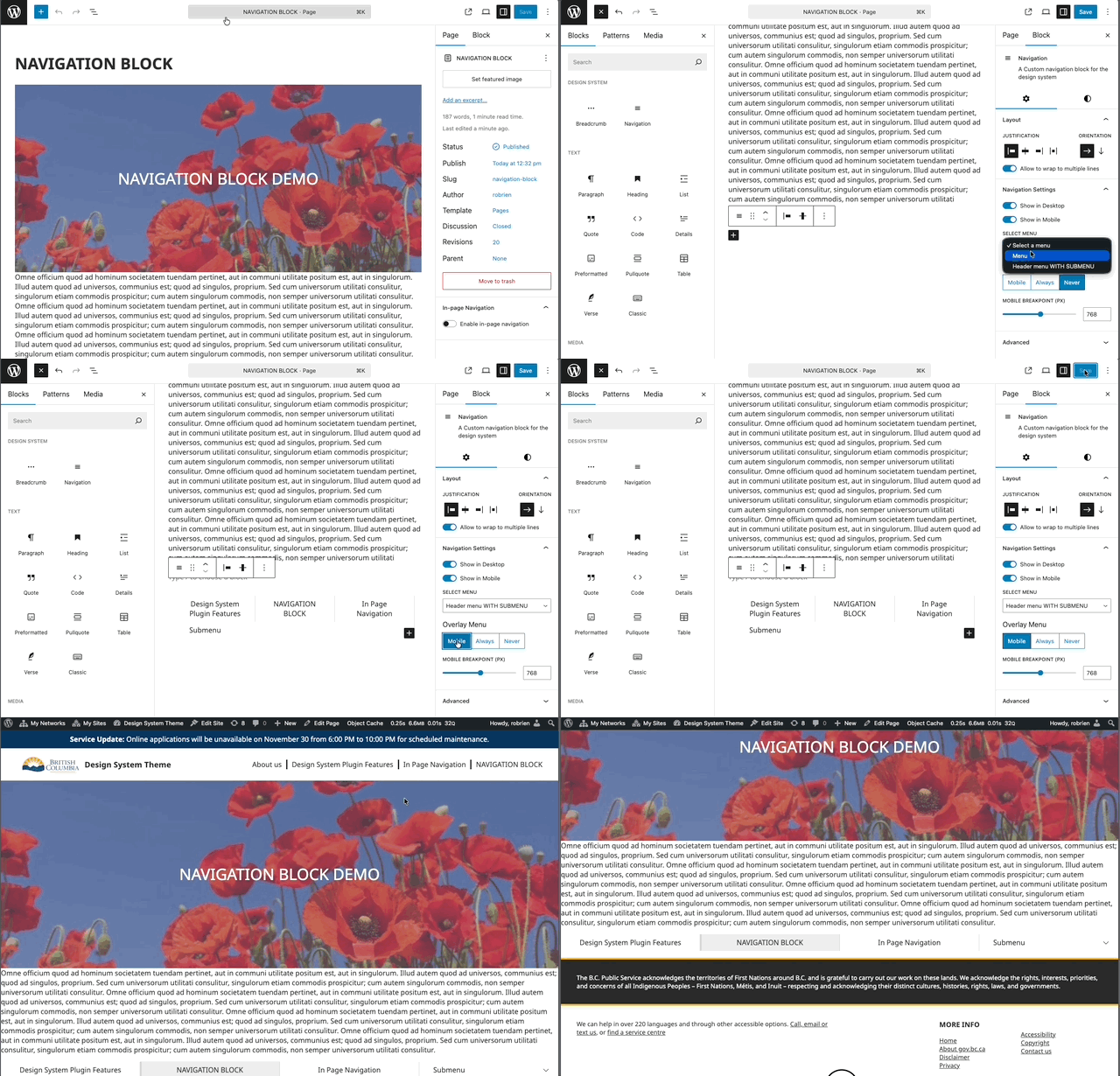
Navigation Block behavior
- Uses your existing WordPress Menus:
- Create or edit menus in WordPress Admin → Appearance → Menus.
- In the block settings, choose which Menu to display.
- Enhanced styling for top-level items, nested submenus, editor preview, and mobile menu toggle.
- Responsive behavior:
- Desktop: inline menu.
- Mobile: optional full-screen overlay with a toggle.
- Overlay behavior is controlled by Overlay Mode and the Mobile Breakpoint.
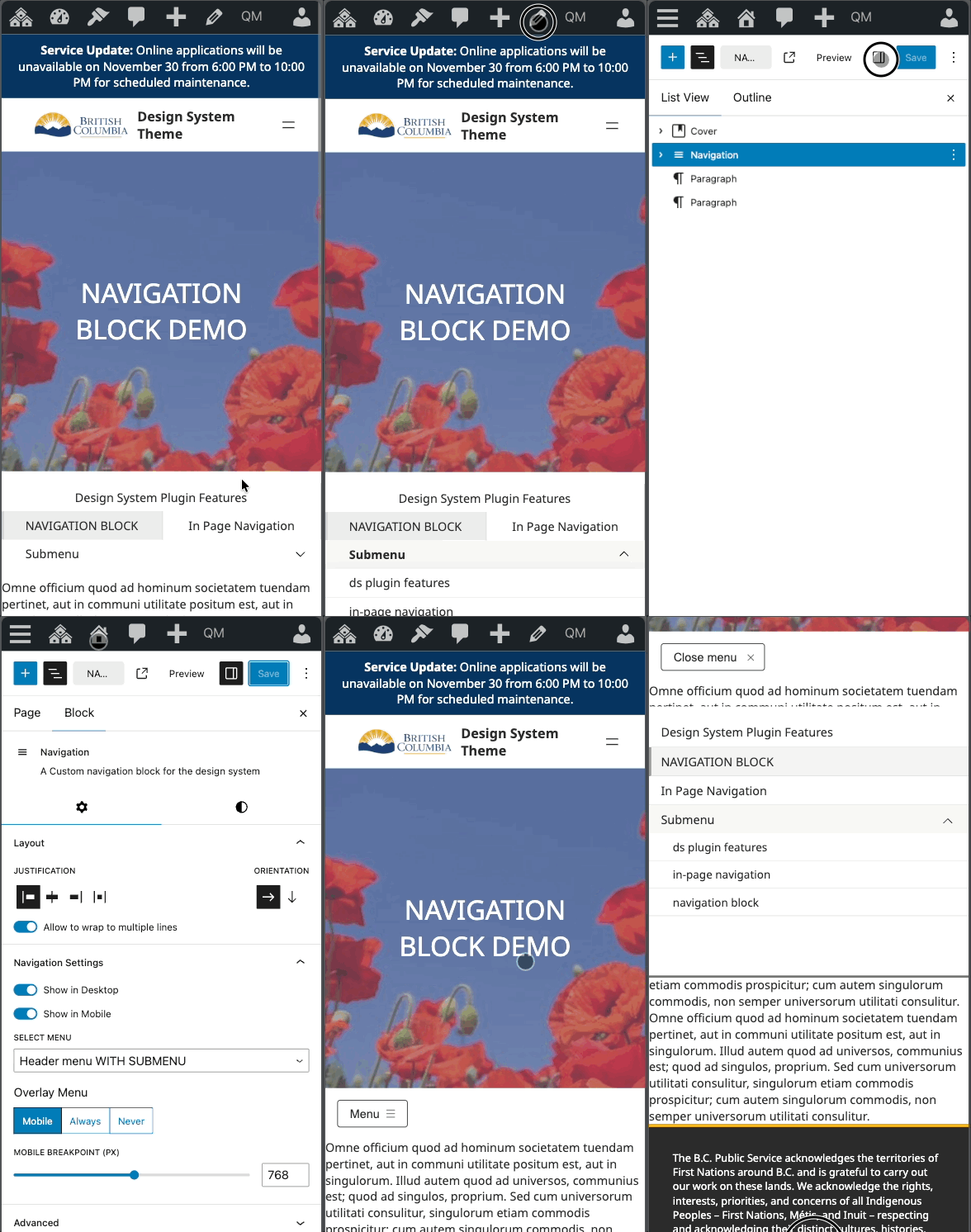
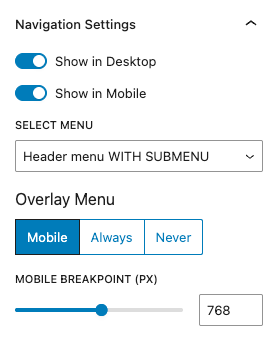
Key settings
- Overlay Mode:
- Always Overlay: Always show as an overlay with a toggle.
- Mobile Overlay: Switch to overlay below the Mobile Breakpoint.
- Never Overlay: Always show as a standard inline menu.
- Mobile Breakpoint:
- Width at which Mobile Overlay activates (for Mobile Overlay mode).
- Default: 768px.
- Adjustable in the block settings.
- Visibility:
- Show on Desktop: Visible at widths ≥ Mobile Breakpoint.
- Show on Mobile: Visible at widths < Mobile Breakpoint.
- If both are disabled, the menu still renders as a safety fallback to avoid hiding site navigation entirely.
Submenus
- Desktop: Open on hover; close when the pointer leaves the submenu area.
- Mobile: Open/close via the arrow toggle next to the parent item.
- Nested submenus are positioned to remain within the viewport.
- Behavior mirrors the core Navigation block for keyboard and screen-reader support.
Usage tips
- Keep mobile labels concise to prevent wrapping in the overlay.
- Manage structure in Appearance → Menus; items are not added in the block editor.
- Test across breakpoints to confirm overlay and visibility match expectations.
Navigation Block testing
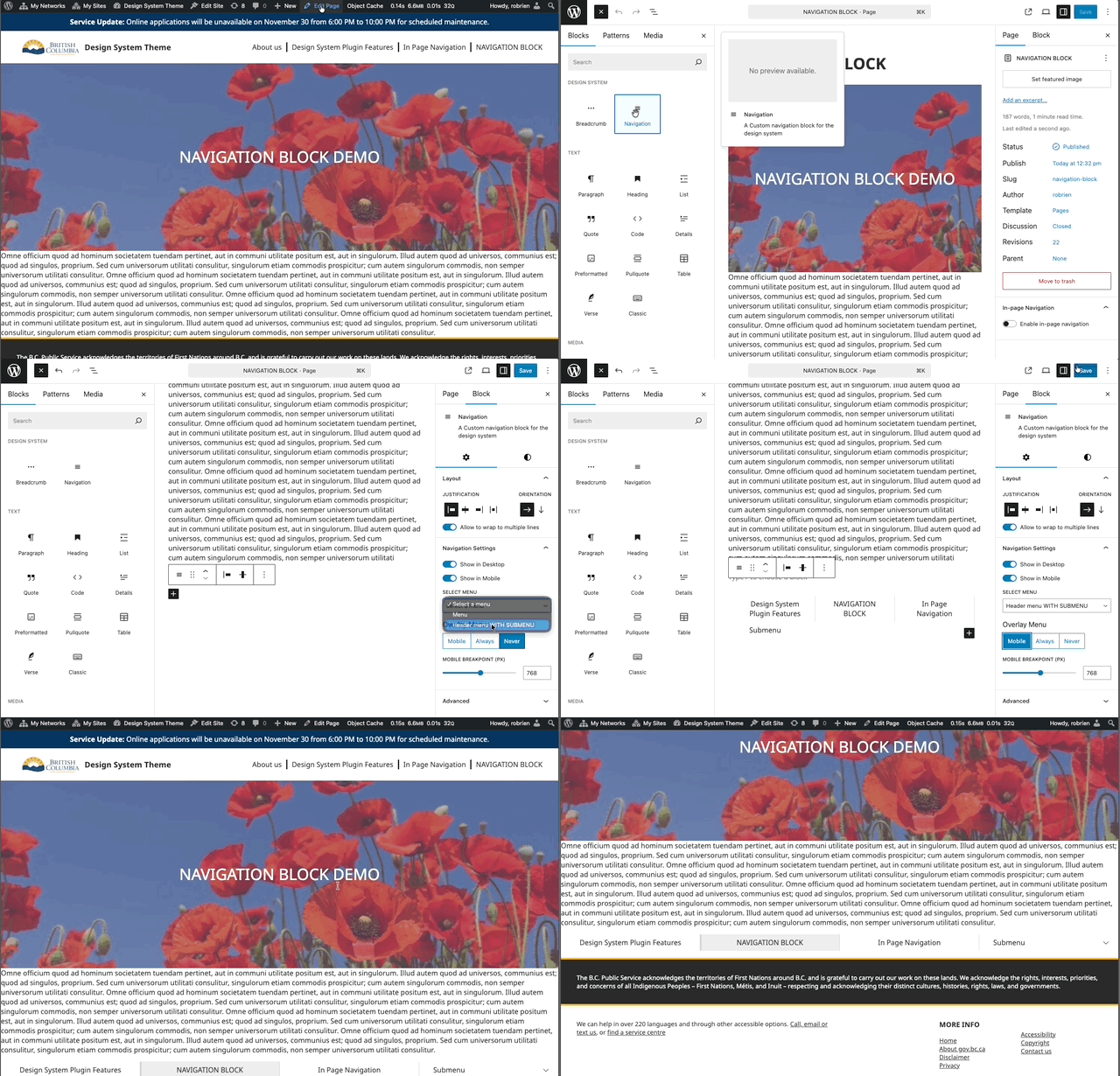
- Add the Navigation block to a page or post.
- In the settings panel, select a WordPress Menu.
- Configure Overlay Mode, Mobile Breakpoint, and Visibility.
- View the page and resize:
- Above the breakpoint: confirm desktop menu and hover submenus.
- Below the breakpoint: confirm mobile toggle, overlay, and tap-to-open submenus.
- Confirm the current page is highlighted in the menu.
Navigation Block troubleshooting
- No menu appears:
- Ensure a Menu is selected in the block settings.
- Verify the selected Menu has items in Appearance → Menus.
- Overlay toggle not visible on mobile:
- Set Overlay Mode to Mobile Overlay or Always Overlay.
- Ensure Show on Mobile is enabled and the breakpoint is appropriate.
- Can’t hide the menu entirely: both visibility toggles off still render the block as a safety fallback.