Document Repository
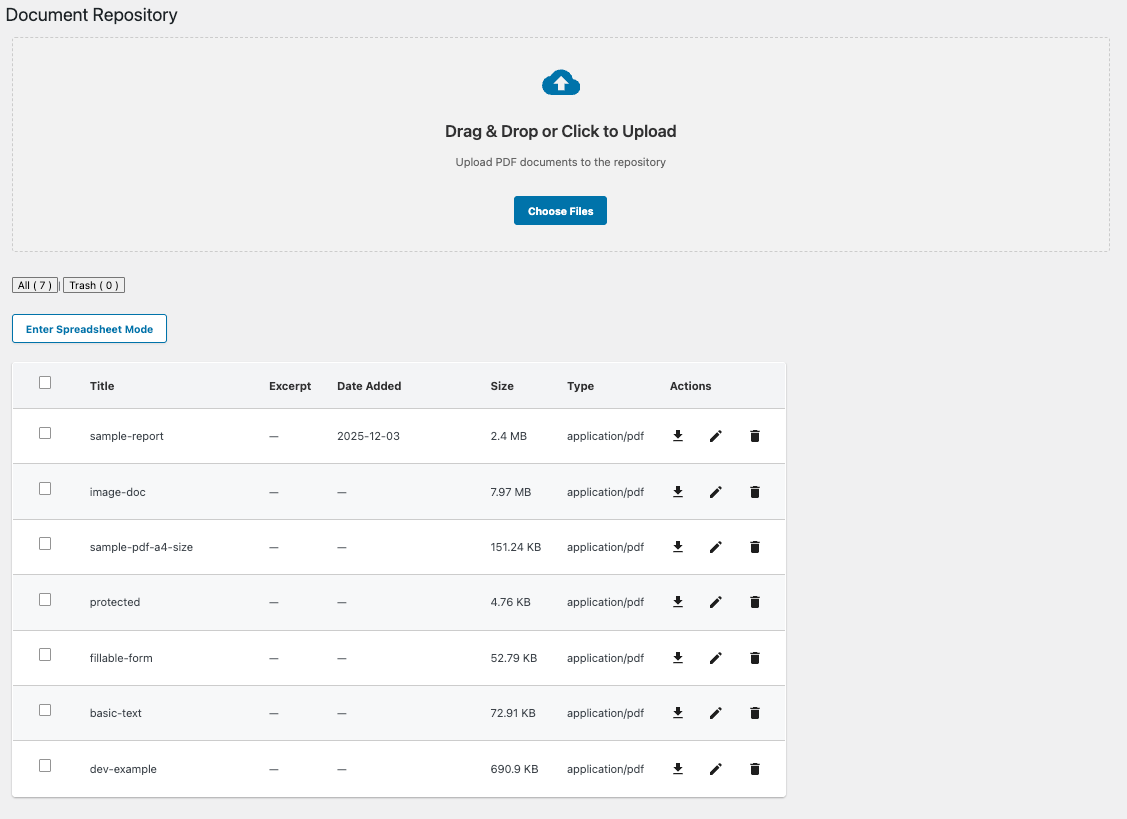
Prerequisites and access
- Document Repository plugin installed and enabled.
- BC Extended Web Search plugin installed and enabled to search document metadata.
- Admins and users with the configured Document Repository capability can upload, edit, and delete documents. The default capability is
upload_files.
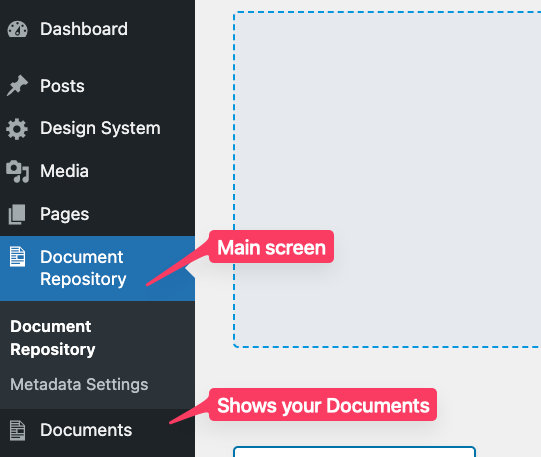
Where to find it
In WordPress Admin: Document Repository (left navigation).
What you can do
- Upload PDF documents.
- Organize documents with titles and excerpts.
- Add custom metadata fields defined in Metadata Settings.
- Search and filter by document content and metadata.
- Use standard list and spreadsheet views.
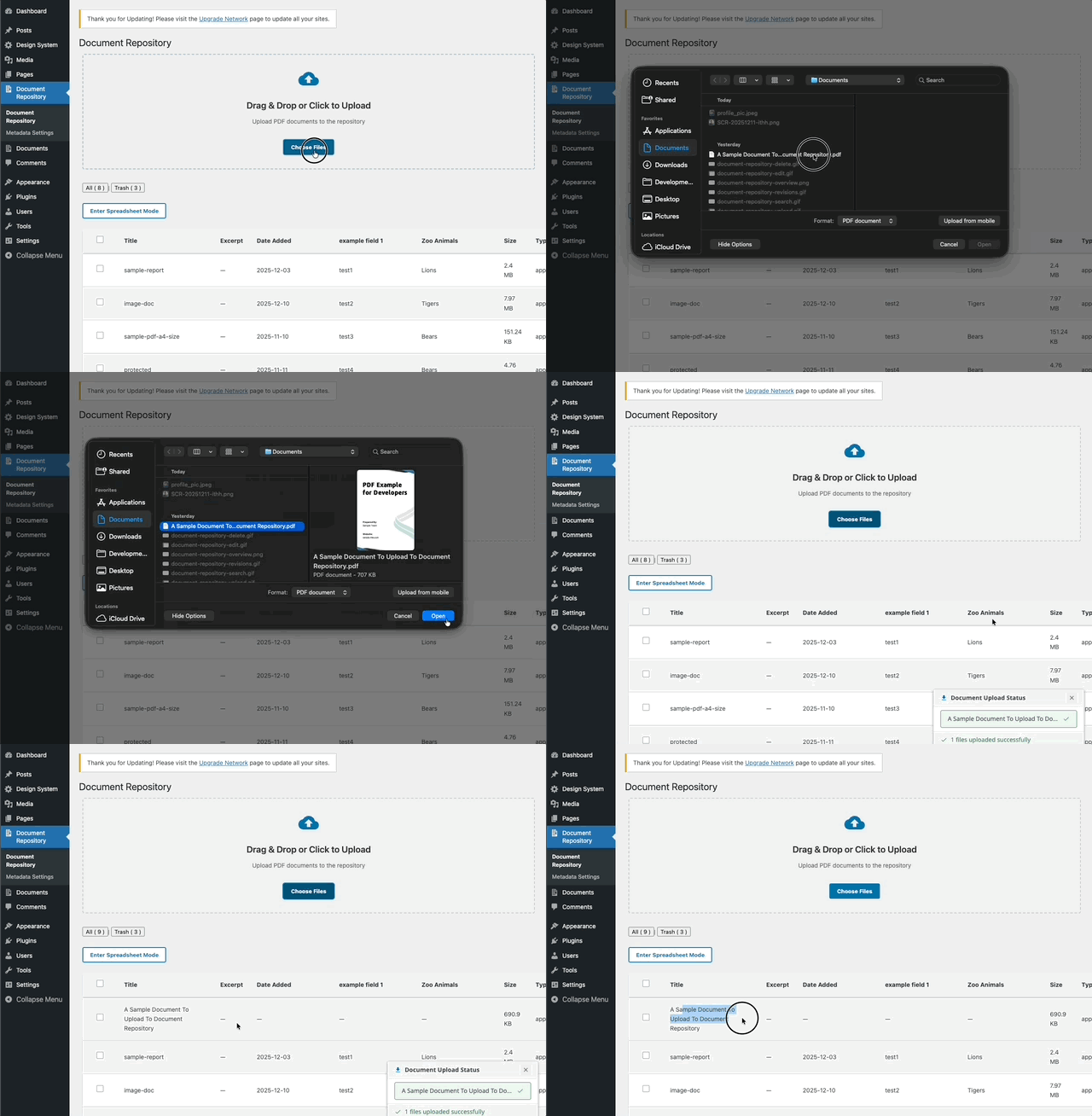
Upload a document
- Go to Document Repository in WordPress Admin.
- Drag files into the Drag & Drop area, or click Choose Files.
- Select PDF files and click Open.
- Uploaded documents appear in the list.
Only valid PDF files are accepted.
Edit document metadata
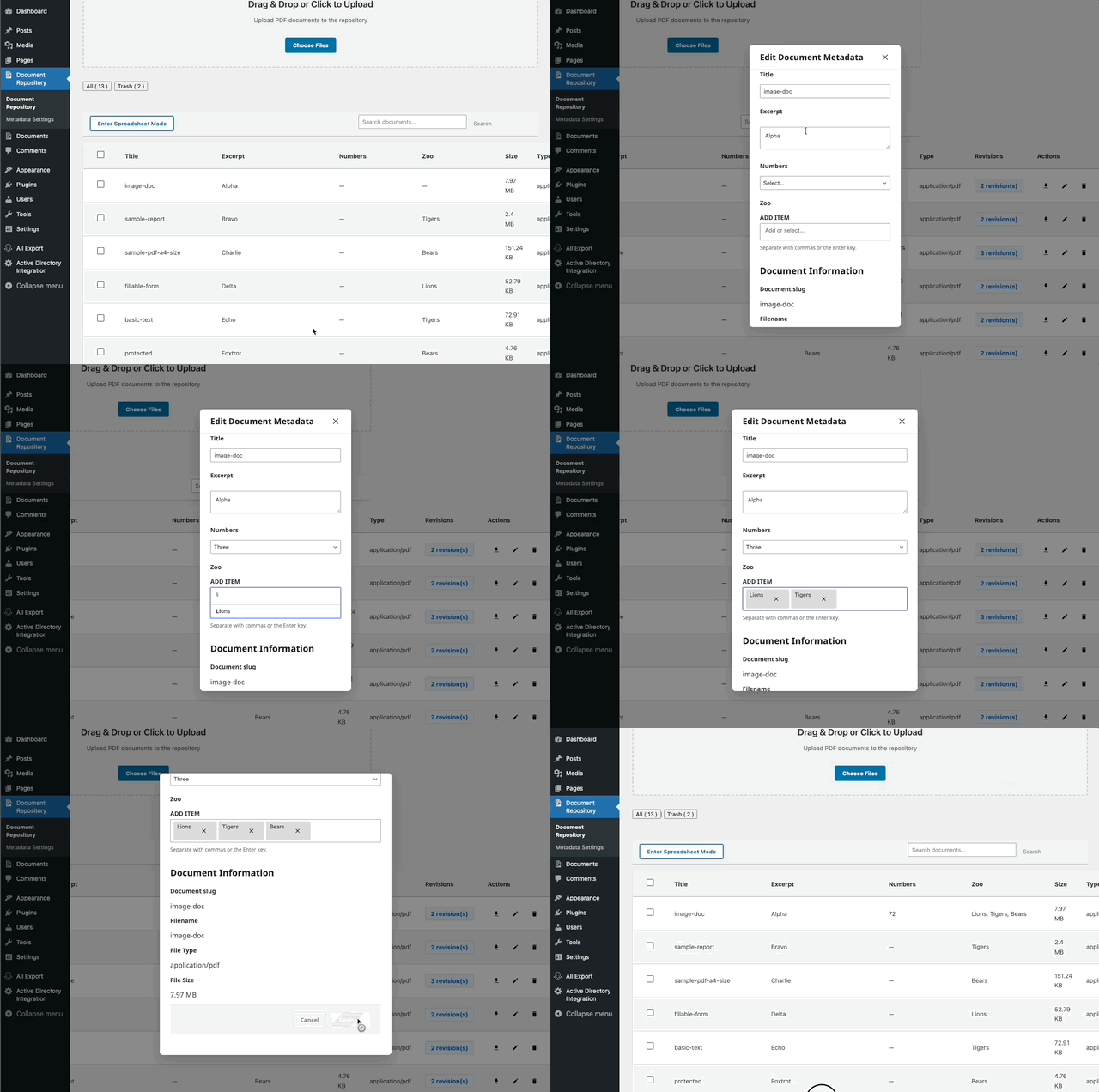
- Go to Document Repository.
- Click the pencil icon to open the editor, or edit inline in Spreadsheet Mode.
- Update the Title, Excerpt, and any Metadata Fields.
- Click Save Changes.
Taxonomy fields may contain one or more values, separated by commas or Enter.
Delete (trash) a document
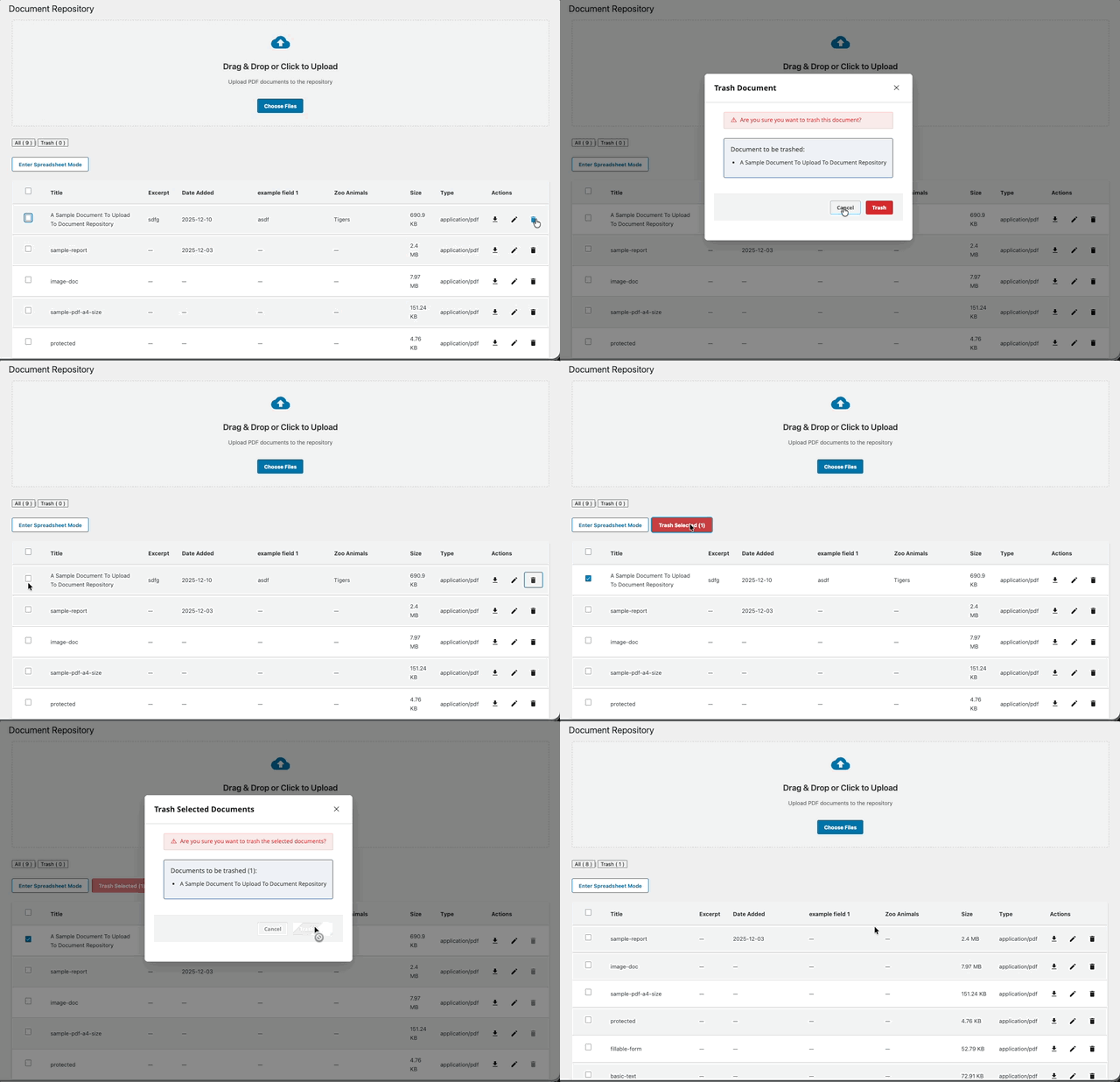
- Select documents and click Trash Selected, or click the Trash icon beside a document.
- Review the confirmation and confirm, or cancel.
Trashed documents can be restored or permanently deleted from the Trash view. Permanent deletion removes the file and associated metadata.
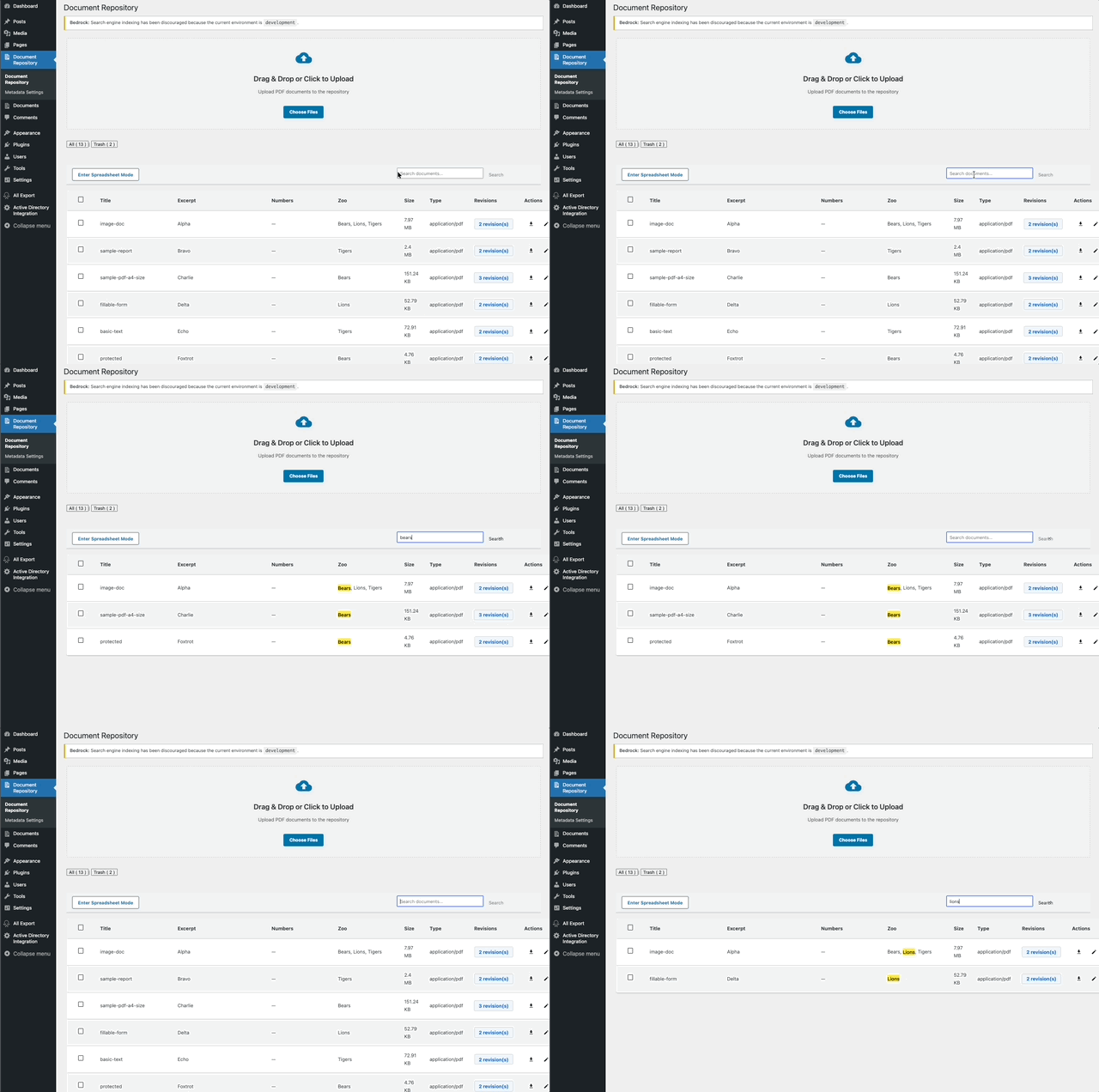
Search documents
Use the Search box, enter a keyword, then press Enter or click Search. Search matches titles, excerpts, and metadata. Clear the input and search again, or click X, to reset.
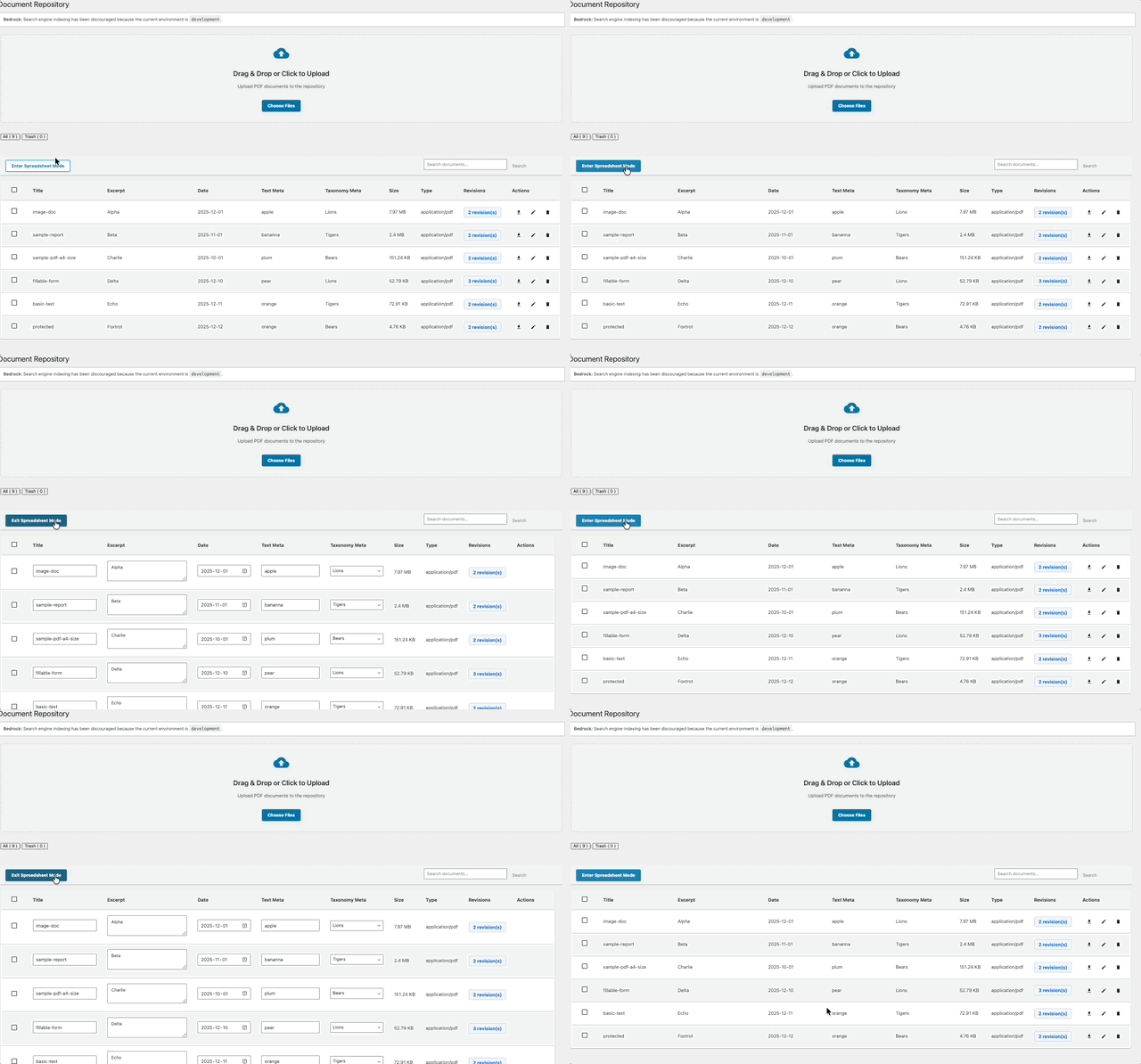
View modes
Standard view shows titles, excerpts, configured metadata, file size and type, revisions, and actions. Spreadsheet view shows documents and metadata in columns and supports inline editing. Use the View Mode toggle in the top-right to switch.
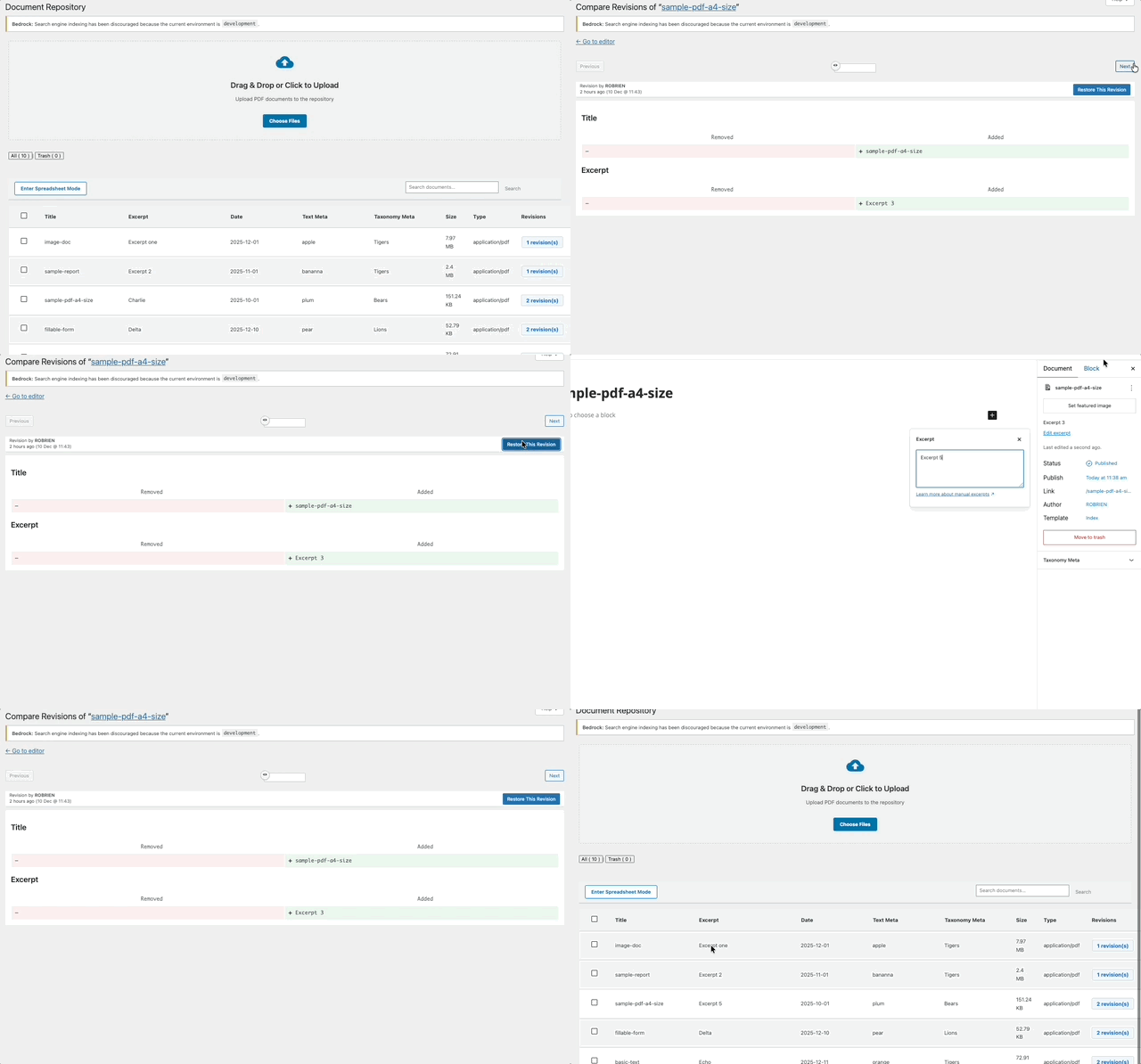
Document revisions
- Click Revisions for a document.
- Use Previous and Next to navigate versions.
- Click Restore this Revision to apply it; this opens the editor.
- Optionally edit the revision text and save.
Documents can be Published, Draft, or Pending Review. To restore a trashed document, open Trash, select it, and click Restore.
Tips and troubleshooting
- Use descriptive titles and excerpts; define metadata fields before large uploads.
- Confirm files are valid PDFs and within hosting size limits if upload fails.
- If search misses documents, ensure the BC Extended Web Search plugin is active and has indexed metadata.
- If fields do not appear, create them in Metadata Settings and refresh.
- Verify user permissions if editing or deleting is unavailable.