Notification Banner — Admin Tool Guide
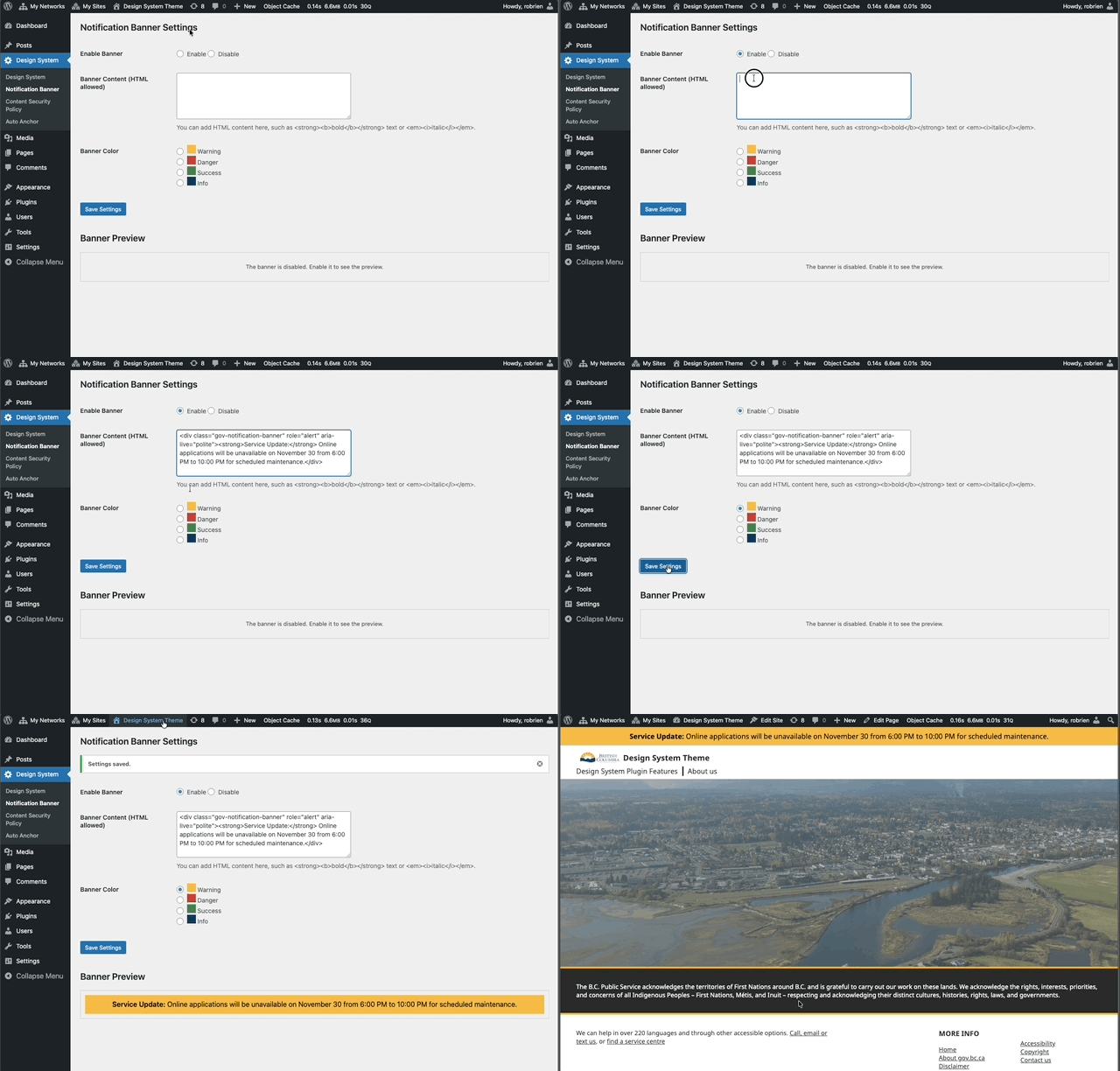
Use this tool to enable a Notification Banner at the top of each page of your website. You can choose the text shown in the banner, as well as its background color. HTML markup is also valid if you want to control the format of the text.
The tool lives in:
- WordPress Admin → Design System → Notification Banner
Click Save Settings to apply changes, and see a preview below the Banner Preview label.
How the banner tool works
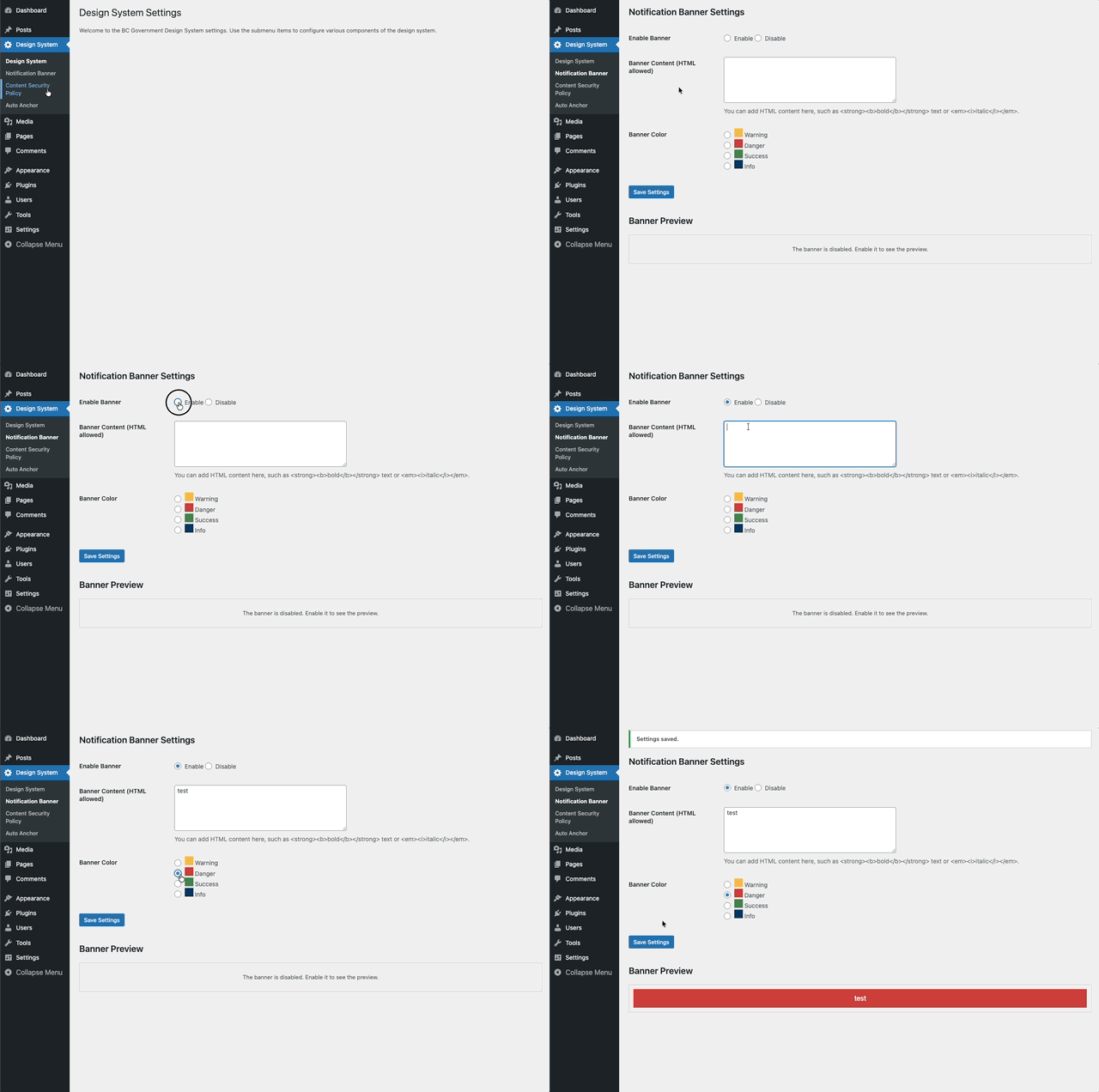
Enable/Disable the banner using the radio buttons.
The Banner Content textbox can accept plain text or HTML Markup, such as:
<strong>strong (bold)</strong><em>emphasis (italics)</em><u>underline (use with caution; can confuse links)</u><s>Strikethrough</s><mark>Highlighted text</mark><pre>preformatted text (preserves spaces and line breaks)
</pre>- other specialized text markup:
<abbr>,<code>,<kbd>,<var>,<sup>, and<sub> - list item markup:
<ul>,<ol>,<li>,<dl>,<dt>,<dd> - quotations and citations:
<blockquote>,<q>,<cite> - headings:
<H1>-<H6>
Choose the background banner color using the color-coded background status colors: Warning, Danger, Success, or Info
To hide the banner, simply click 'Disable' beside 'Enable Banner'.
Common recipes
Test Site Banner
- text:
This is the Dev/Test Environment. The content you are viewing is not final and subject to change. - background color: Danger
- text:
Site under maintenance
- text:
This site is under maintenance. Please check back periodically for udpates - background color: Warning
- text:
Informational Banner
- text:
Here are instructions for filling in this form... - background color: Info
- text:
Testing changes
- Save Settings.
- Verify the banner preview matches expectations.
- Navigate to your homepage and hard-refresh your browser
- Verify the text and background color of the banner are correct.