In-page Navigation
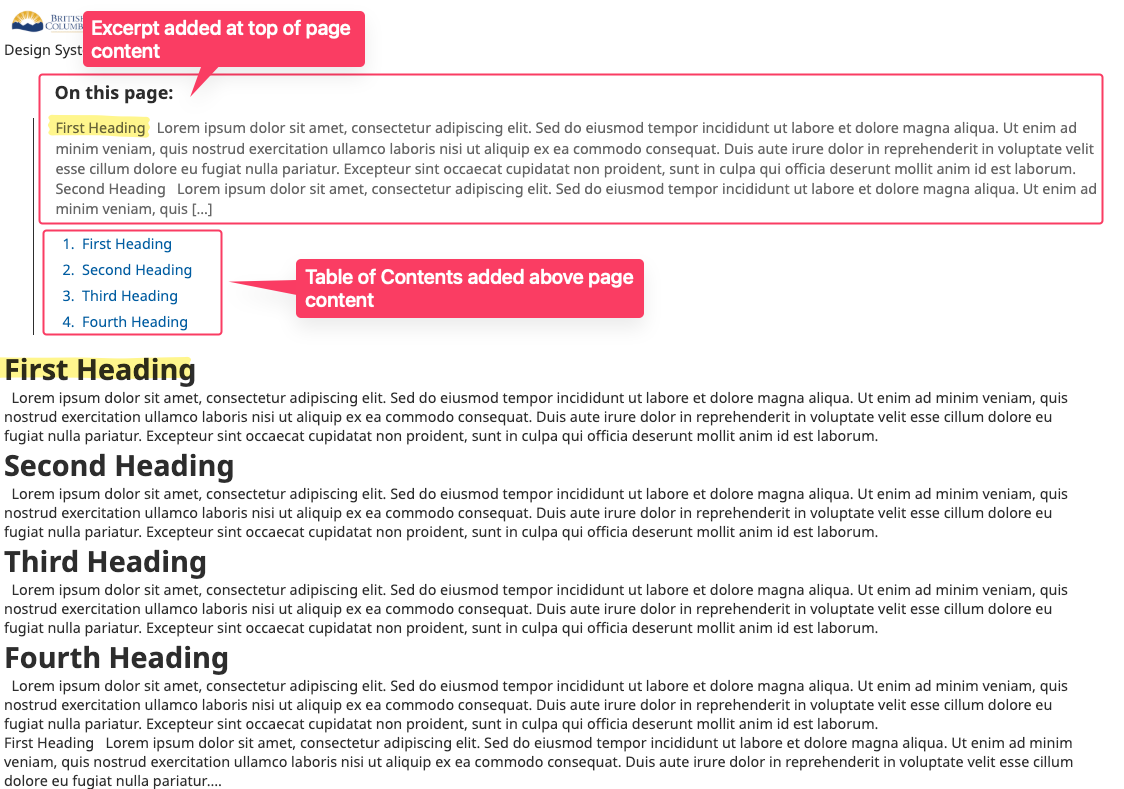
Provides an automatic table of contents for Pages by collecting all H2 headings and presenting numbered jump links.
When It Appears
- Only on Page post type.
- Only if at least one H2 exists.
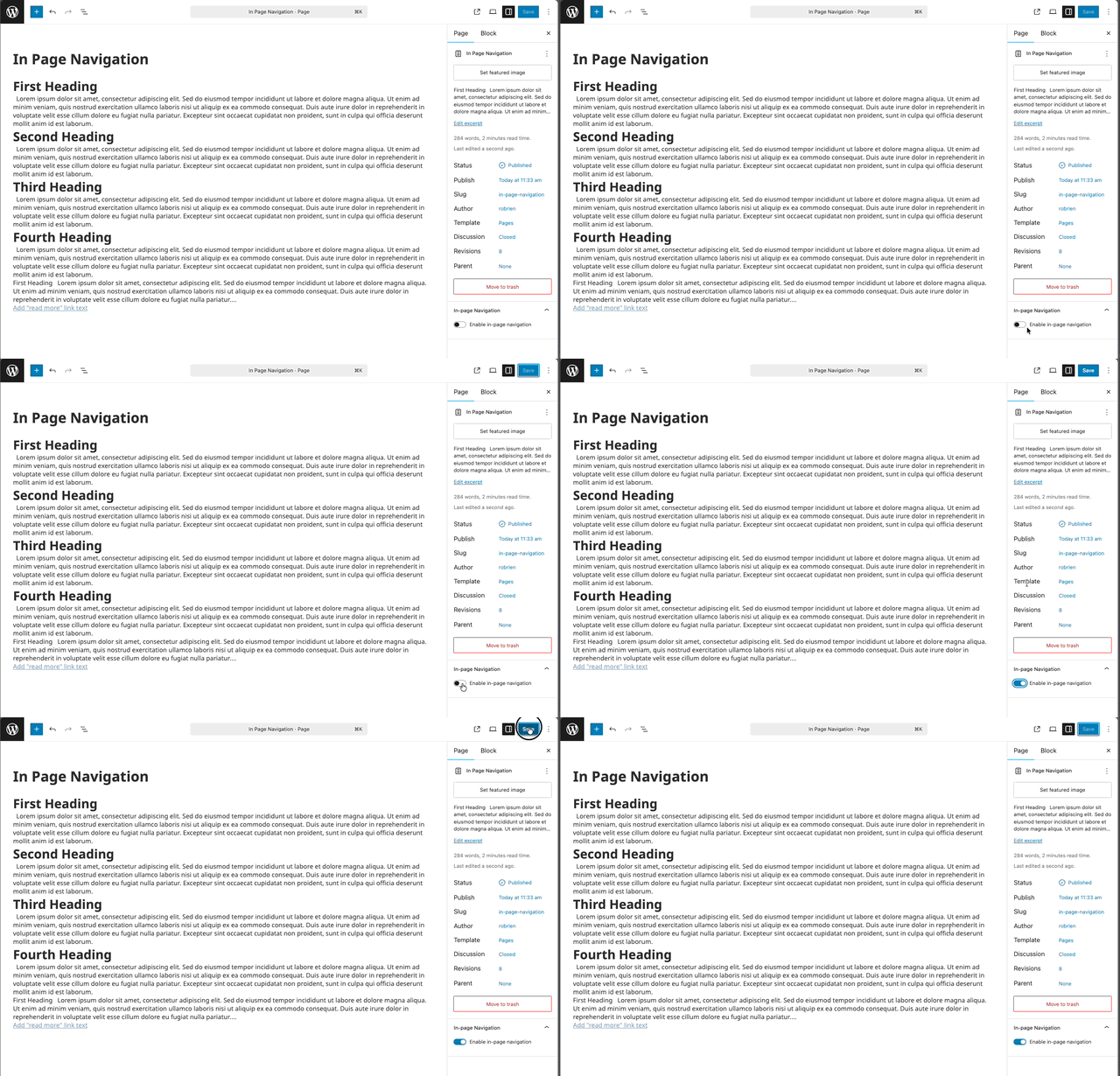
- Enabled per page via a toggle in the editor sidebar.
How It Works
- Scans H2 elements; adds IDs if missing (slug + index).
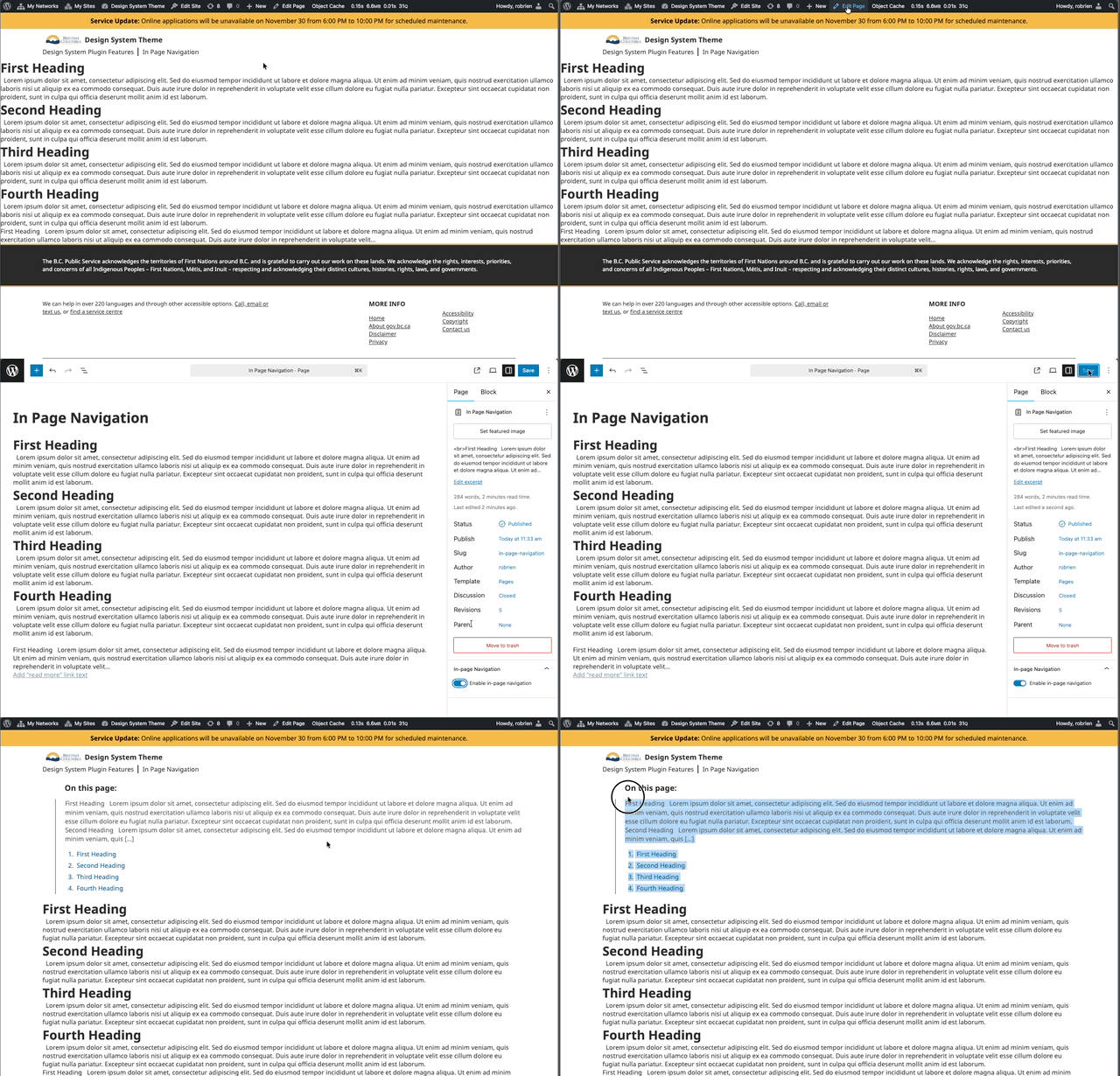
- Renders an aside containing:
- Optional page excerpt (if set).
- Numbered links to each section.
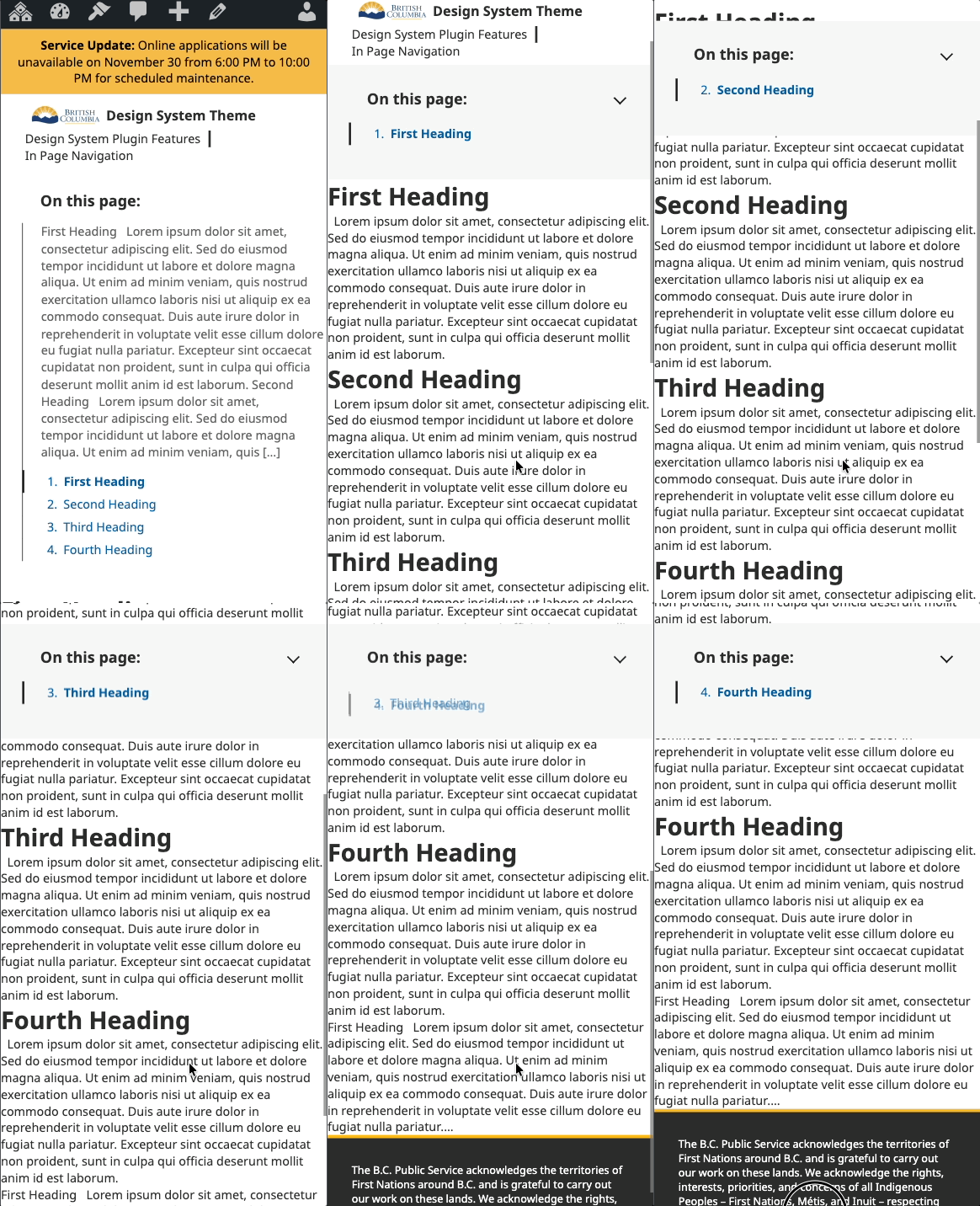
- Highlights the active section while scrolling (mobile emphasis).
- Smooth scroll on link click.
Editor Usage
- Edit a Page.
- Open the “In-page Navigation” panel in the document settings.
- Toggle “Enable in-page navigation” on.
- Update the Page
Responsive Behavior
- Desktop (>768px): Expanded list always visible.
- Mobile (≤768px): (See demo below) Sticky bar; toggle button collapses/expands; current section emphasized; background lightens after scroll.
ID Generation Example
Heading "Getting Started" -> section-getting-started-0
Excerpt
If the Page has an excerpt, it is shown at the top of the navigation for context.
Styling
Uses theme root padding variables; no user configuration is required.