Auto Anchor — Editor Guide
Automatically generate stable, URL-friendly anchors (IDs) for Heading blocks. This extends the core Heading block by setting the “anchor” attribute based on the heading’s text when the feature is enabled in settings.
Find it in:
- Block Inserter (+) → Core → Heading
- Auto Anchor is applied automatically to core/heading when enabled After inserting a heading, the anchor ID is created in the editor and used on the frontend for deep-links.

How it works
- Uses heading text to generate an anchor ID (e.g., “Getting Started” →
getting-started) - Applies to core/heading in the editor when Auto Anchor is enabled
- Sets the Heading block’s “anchor” attribute; the frontend renders the ID on the heading tag
- Respects manual anchors: if you manually set an anchor, Auto Anchor won’t overwrite it
Key settings
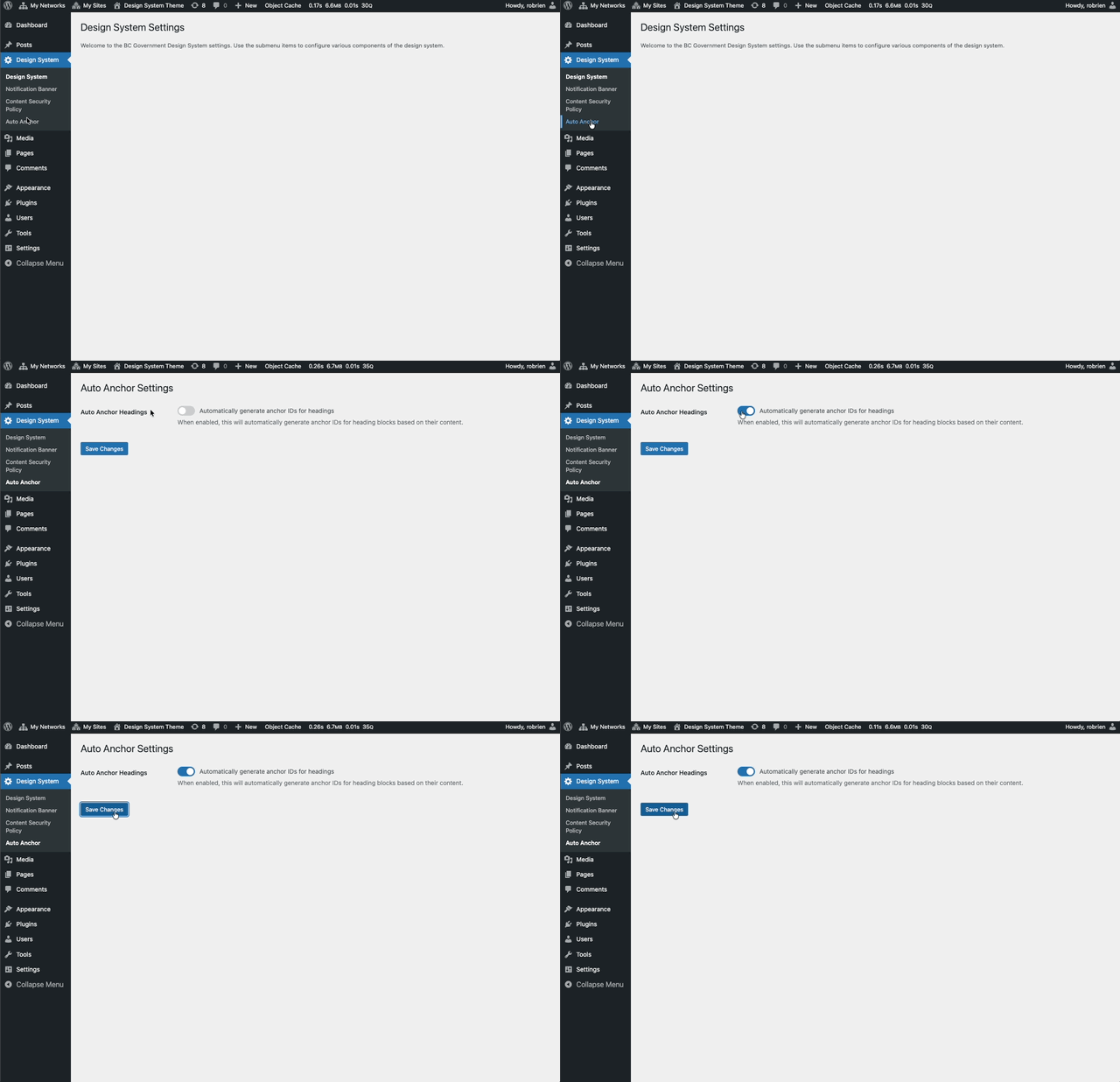
- Auto Anchor (Global)
- Location: WordPress Admin → Design System → Settings
- Option key:
dswp_auto_anchor_enabled - When enabled, all Heading blocks auto-generate anchors as you type
Behavior
- Editor:
- Auto-generates the “anchor” attribute for core/heading based on the content
- Updates as heading text changes
- Tracks auto-generated anchors with an internal flag to allow cleanup if disabled
- Frontend:
- Headings render with the
idattribute (e.g.,<h2 id="getting-started">) - Links to specific sections work using
#your-anchor-id - Note: This feature does not add a visible “link icon” next to headings
- Headings render with the

Usage tips
- Keep headings concise and descriptive; anchor IDs are derived from the text
- Avoid duplicate headings; identical text creates identical IDs
- If you need a custom anchor, set it manually in the Heading block’s Advanced settings
Testing
- Enable Auto Anchor: WordPress Admin → Design System → Settings → Auto Anchor.
- In the editor, add a Heading block and type a title (e.g., “Overview”).
- Open the Heading block’s Advanced panel and verify the Anchor field shows
overview. - Publish/update the page.
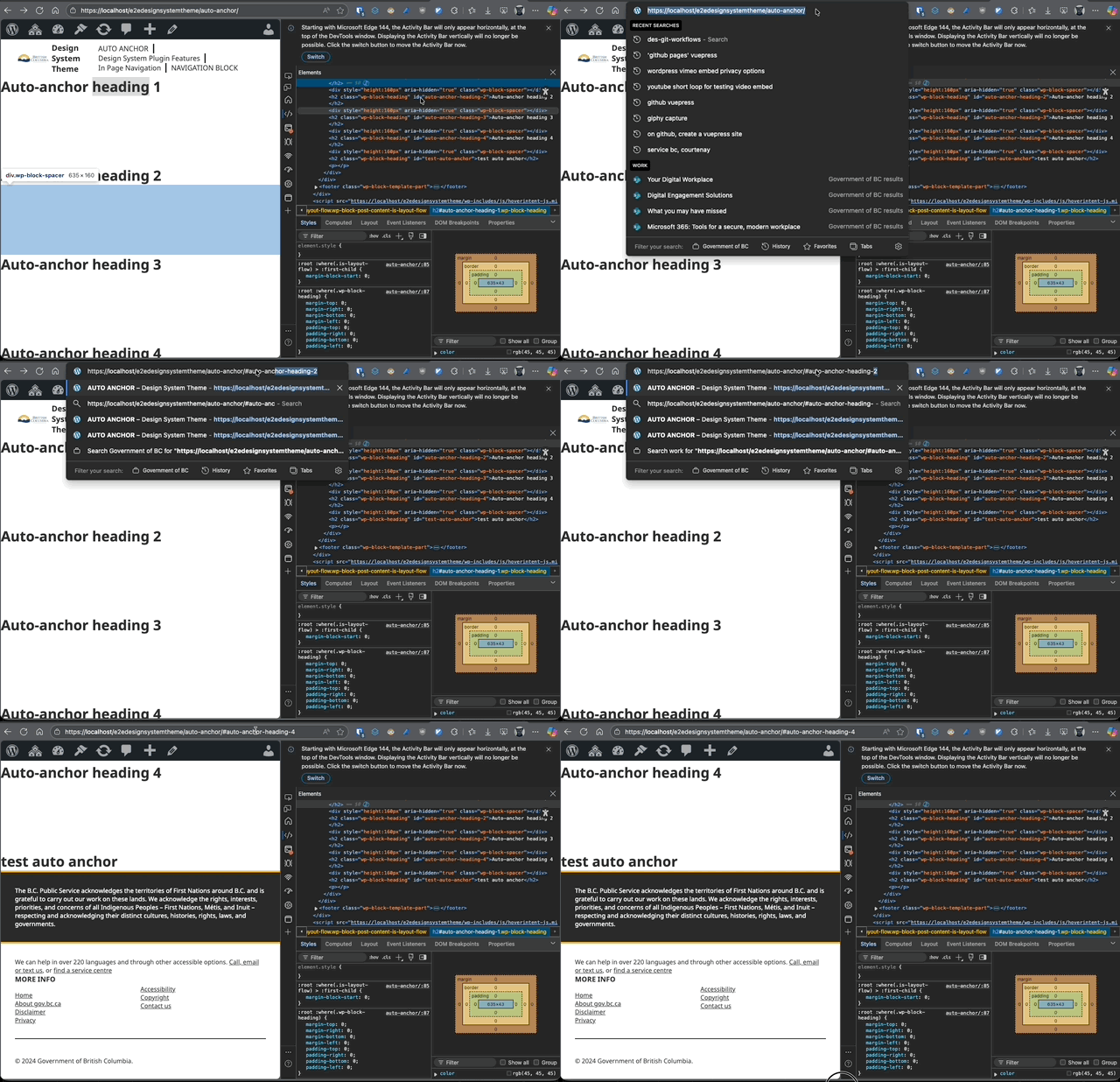
- On the frontend:
- Open DevTools and inspect the heading tag; confirm
id="overview". - Append
#overviewto the page URL and verify the browser jumps to the section.
- Open DevTools and inspect the heading tag; confirm
Troubleshooting
- No ID on the frontend:
- Confirm Auto Anchor is enabled in Design System Settings
- Ensure the block is core/heading (custom heading blocks may not be supported)
- Re-save the page; the anchor is set in the editor
- Anchor keeps changing:
- Auto Anchor updates when heading text changes; set a manual anchor to lock it
- Duplicate anchors:
- If multiple headings have identical text, consider adding a manual anchor to one
Notes
- Auto Anchor runs in the editor to set the anchor attribute; it does not inject icons or clipboard behavior on the frontend.
- The generated anchors use lowercase letters and numbers, converting spaces and punctuation to hyphens, and trimming leading/trailing hyphens.