First run
Launching the tool
Double-click run.bat in the install folder. A console window opens
(leave it running — closing it stops the tool) and your default browser
opens to http://localhost:8050 once the local server is ready.
If the browser does not open automatically, open any browser and go to
http://localhost:8050 yourself.
The first launch is slower. Cold-starting the tool the first time after install takes about 10–15 seconds while Python and the tool’s libraries load. Subsequent launches are nearly instant. The browser opens automatically once the server is ready — there is nothing you need to refresh.
Keep the console window open. It is the running tool. Minimise it if it is in the way, but do not close it until you are finished.
Signing in to BCGW
The first page is a sign-in page. Enter your personal BCGW username and password.
The page also shows the database it connects to —
bcgw.bcgov:1521/idwprod1.bcgov — for reference. You do not need to
change it.
When you click Sign in, the tool checks your credentials against BCGW. On success, it takes you to the analysis setup page.
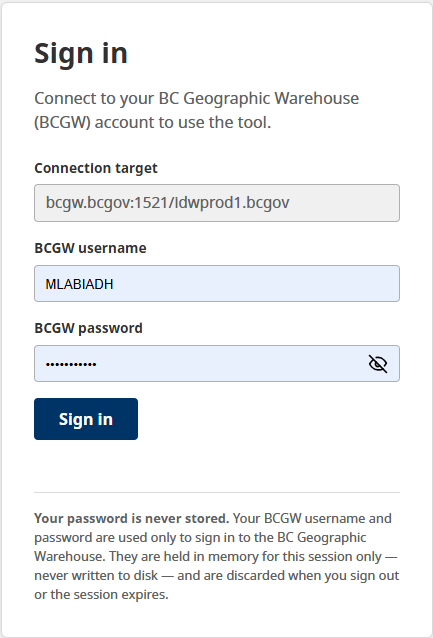
The sign-in page.
You must be on the BC government network
Signing in and running an analysis require a connection to BCGW. That means you must be:
- in a BC government office, or
- connected by VPN if you are working from home.
If you are not on the government network, sign-in will fail with a connection error. See Troubleshooting if this happens.
About your password
- Your password is never saved on your computer by the tool. You enter it each time you launch the tool.
- Your browser (Chrome, Edge, and so on) may offer to save the password for you — that is between you and your browser. The tool itself stores nothing.
- When your BCGW password expires (typically every three months), simply enter the new password the next time you sign in. There is nothing to update in the tool.
Signing out
Use the Logout link in the header. This closes the database
connection and clears your session. Closing the run.bat console window
also stops the tool entirely.
Next: Running an analysis.