BCGW account help
The Groundwater Drawdown Tool signs in to BCGW with your personal BCGW account — the same Oracle username and password you use for other tools requiring a BCGW connection (e.g. ArcGIS Pro). If sign-in is failing, the cause is almost always one of:
- the account is locked or expired,
- the password has expired or has just been changed,
- you are not on the BC government network or VPN — see Troubleshooting.
This page covers how to check and fix the account itself.
Check your account status
The BC government runs a self-serve query tool that reports the status of any BCGW account:
https://apps.gov.bc.ca/int/aqt/jsp/query.jsp
- In User / Account Name, enter your IDIR (no
@gov.bc.ca). - In Queries, select Account Status.
- In Databases, select IDWPROD11 (the production BCGW database, the one the tool connects to).
- Click Submit.
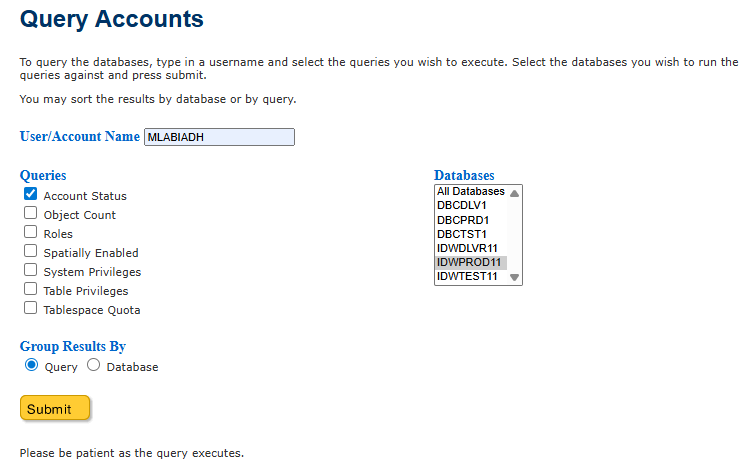
The BC Account Query Tool, with the three fields set to query an account’s status.
The result is the current status of your account:
| Status | Meaning |
|---|---|
| OPEN | Account is active. Sign-in should work. |
| LOCKED | Too many wrong-password attempts. See Unlocking below. |
| EXPIRED | The password has expired. See Changing your password. |
| CLOSED | The account no longer exists. See Requesting a new BCGW account. |
If the query reports no result for your IDIR you do not yet have a BCGW account — see Requesting a new BCGW account.
Requesting a new BCGW account
If you do not have a BCGW account yet, request one through the NRM Business Service Desk — the same service-desk portal used to unlock a locked account:
https://apps.nrs.gov.bc.ca/int/jira/servicedesk/customer/portal/1/create/261
On that form:
- For the request type, select No ESRI License (BCGW Production ONLY). The tool connects to production BCGW only and does not need an ESRI/ArcGIS license.
- Review the BCGW Access Agreement (linked on the same page), then check the BCGW Data Access Agreement box to confirm you accept it.
- In the Additional Information box, add a short note saying you are requesting a new BCGW account.
Once the account is created you will receive an IDIR-linked BCGW username and password to use on the tool’s sign-in screen.
Changing your password
BCGW passwords expire and must be updated every two months to keep the account active. The self-serve password-change tool is:
https://apps.gov.bc.ca/int/chorapwd/
Sign in with your IDIR and follow the prompts. After changing the password, sign in to the Groundwater Drawdown Tool with the new password — there is nothing to update inside the tool.
Tip: Set a calendar reminder a few days before the two-month mark. Letting the password expire is the most common reason a previously-working sign-in suddenly stops working.
Unlocking a locked account
Three incorrect sign-in attempts will lock your BCGW account. Once locked, even the correct password no longer works — the lock has to be cleared first.
To unlock the account, or to request a password reset if you have forgotten the password, contact the NRM Business Service Desk:
- Phone: 7700 (internal), or the regular service-desk number on external lines.
- Online ticket: https://apps.nrs.gov.bc.ca/int/jira/servicedesk/customer/portal/1/create/261
This is the same portal used to request a new account, so use the Additional Information box to make clear that you want to unlock an existing locked account (not create a new one). Include your IDIR, the database name (IDWPROD11), and a one-line description such as “BCGW account locked, please unlock” or “BCGW password reset request”.
Saving your password in the browser
The sign-in form is a standard web form, so if you’d like to skip
re-typing your password each session you can let your browser’s
built-in password manager (Chrome, Edge, Firefox) remember it for
localhost:8050. The first time you sign in successfully the
browser will offer to save the credentials.
The tool itself never stores your password. It is held only in memory for the active session and discarded when you sign out or the session expires. Any password saved on your machine lives in the browser’s password store, under your control — not in any tool file. The same reminder is shown on the sign-in screen.
One caveat if you do save the password: a browser-saved password
goes stale as soon as you rotate your BCGW password (which the
service requires every two months). If sign-in suddenly fails after
a password change, clear the saved entry for localhost:8050 and
let the browser re-save the new one — otherwise the stale auto-fill
will keep submitting the old password and can lock the account.
Avoiding the lock
A few small habits prevent most account problems:
- Change your password before the two-month expiry — set a calendar reminder.
- After two failed sign-in attempts, stop and check the password before trying a third time. Use the account-status query above to confirm the account is still OPEN before attempting again.
- If you use a browser-saved password, refresh it after each BCGW password change — see Saving your password in the browser above.
If sign-in still fails after all of this
See Troubleshooting for the network/VPN checks. If the account is OPEN, your password is known-correct, you are connected to the BC government network or VPN, and sign-in still fails — contact your project lead.