Metadata Settings
Use Metadata settings to define the custom fields that appear on every document in the repository. These fields improve search, sorting, and filtering across both the standard and spreadsheet views.
Prerequisites & Access
- Document Repository plugin installed and enabled.
- Admins or users with edit capability can create, edit, and delete metadata fields.
Where to find it
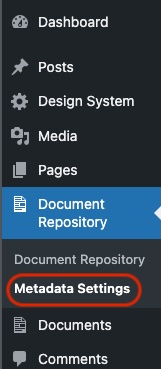
In WordPress Admin: Document Repository → Metadata Settings (left nav).
What you can configure
Each metadata field includes:
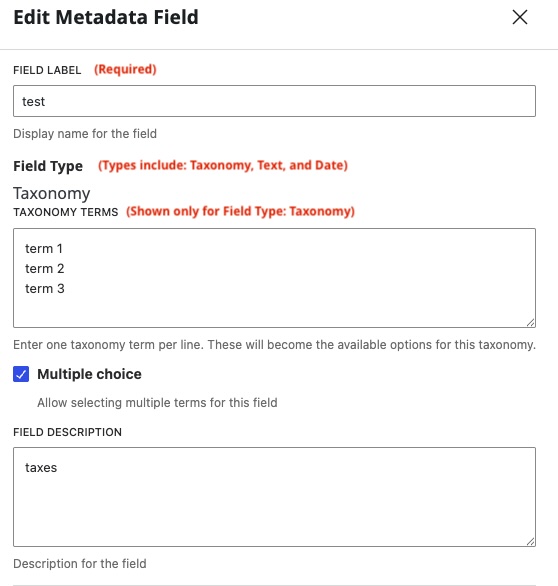
- Field Label (required): The display name shown in the repository.
- Field Type:
Text,Date, orTaxonomy. - Description: Optional helper text.
- Taxonomy Terms (required when type is Taxonomy): A list of categories, one per line. For example, if a document repository is used by a Zoo, the taxonomy could be Animals: Ape, Bear, Coyote. The taxonomy is Animals, and the terms are Ape, Bear, Coyote.
Notes:
- Field type is chosen at creation and cannot be changed later. You must create a new field.
- Text and Date fields may have empty values; Taxonomy fields require terms.
- New fields apply to newly uploaded documents, but values remain blank until edited in standard or spreadsheet mode.
Add New Field
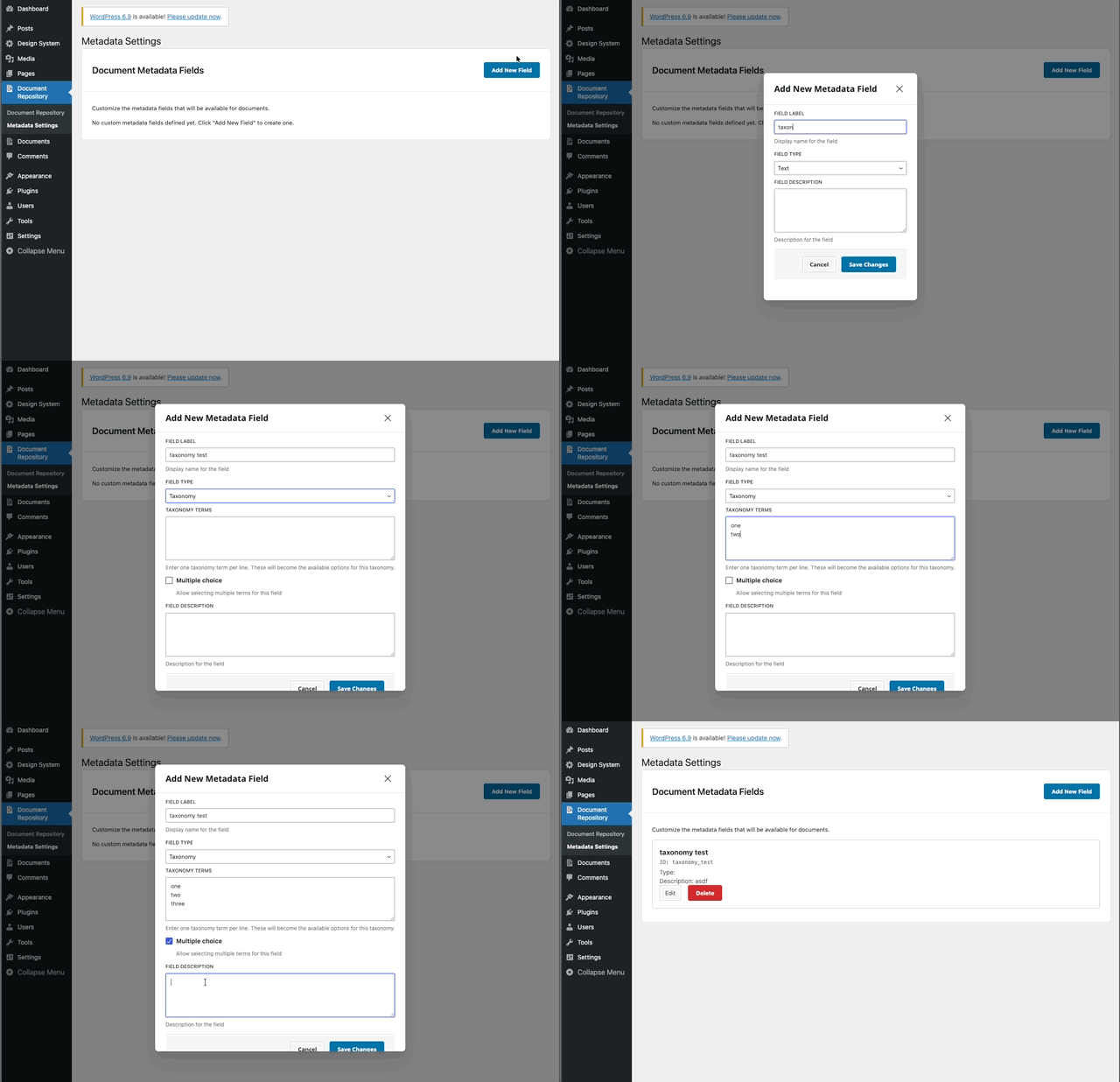
- Go to Document Repository → Metadata Settings.
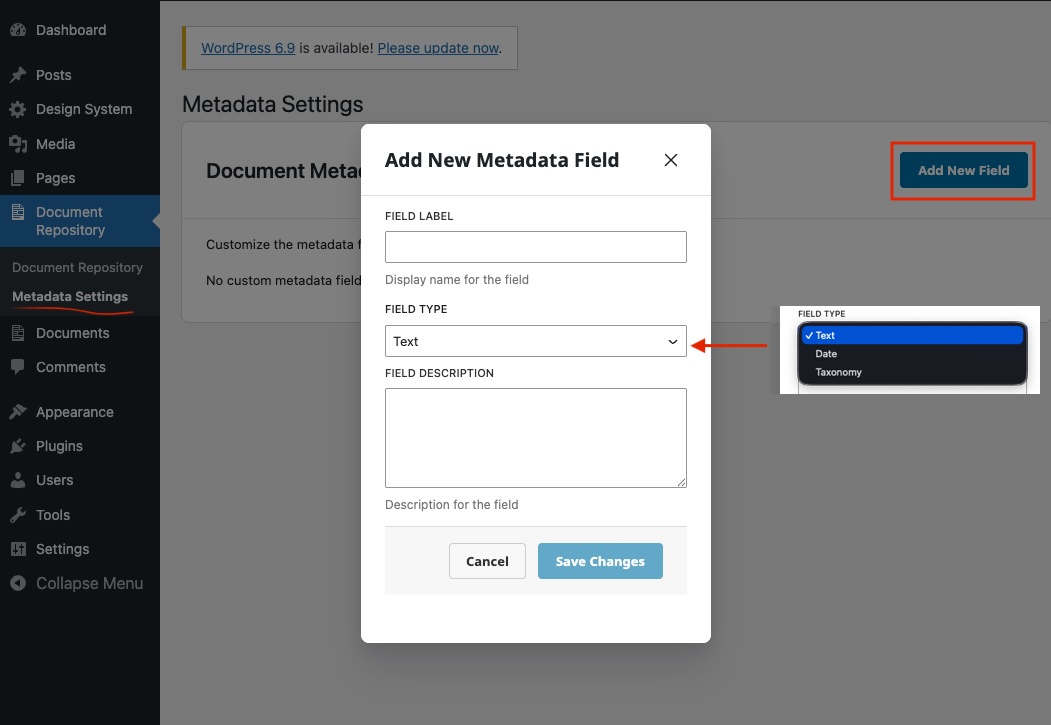
- Click Add New Field.
- Enter a Field Label (required).
- Choose a Field Type:
- Text: freeform text.
- Date: date value.
- Taxonomy: pick from predefined terms.
- (Taxonomy only) Enter Taxonomy Terms as a list, one line per term.
- (Taxonomy only) Check Multiple Choice to allow selecting multiple taxonomy terms.
- Optionally add a Description.
- Click Save.
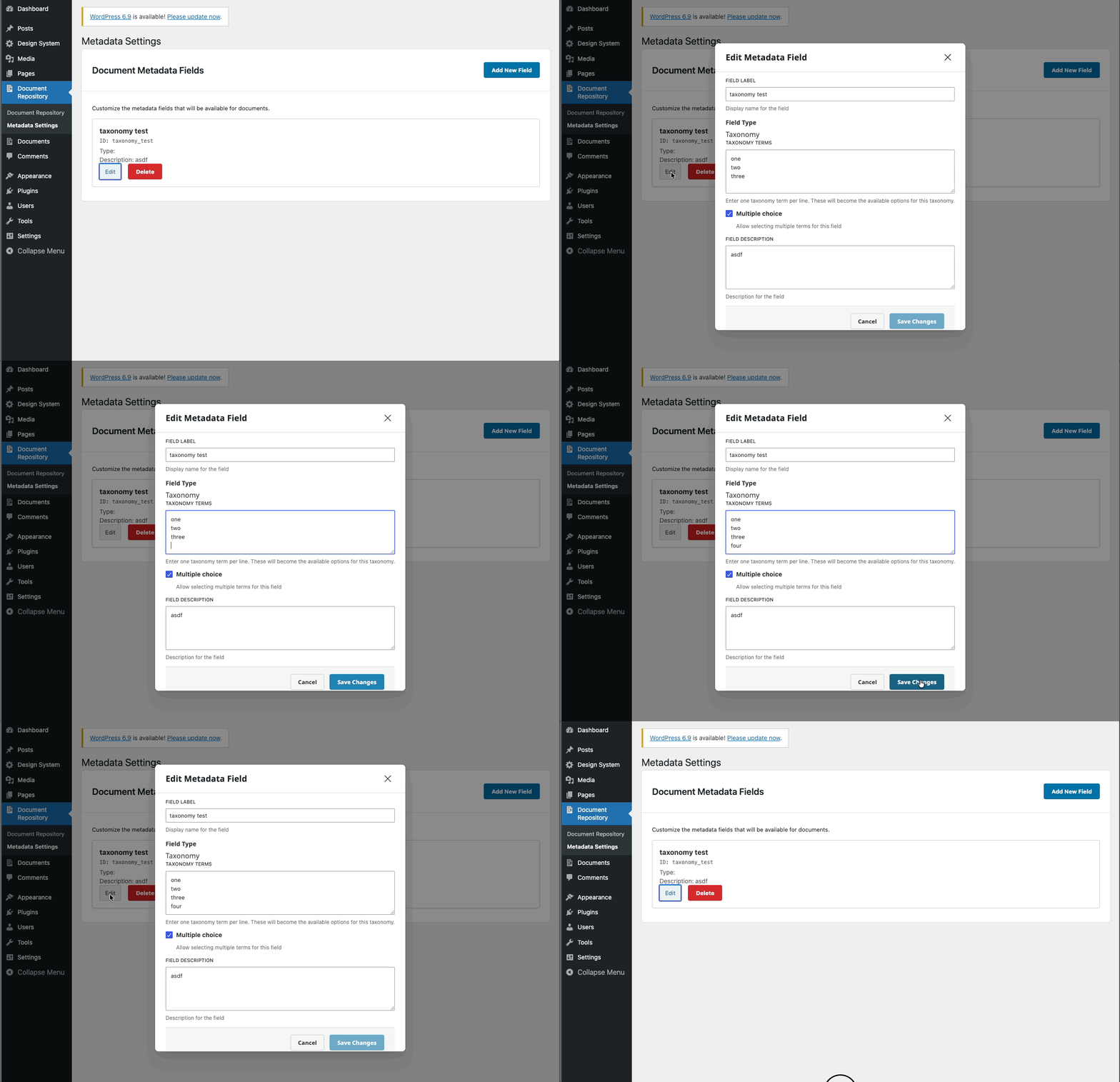
Edit a field
- Click Edit beside a field.
- Update the Label, Description, or (for Taxonomy) modify the Terms.
- Field Type is locked after creation.
- Taxonomy terms can be modified but not fully removed; keep at least one term.
- Save changes. Existing documents keep their prior values until each document is edited (standard or spreadsheet mode).
Delete a field
- Click Delete beside a field.
- In the confirmation dialog, review the warning:
- Deleting permanently removes the field and all its values from every document.
- Dialog shows Field ID, Label, Type, and Description.
- Choose Delete Field to confirm, or Cancel to stop.
Effect:
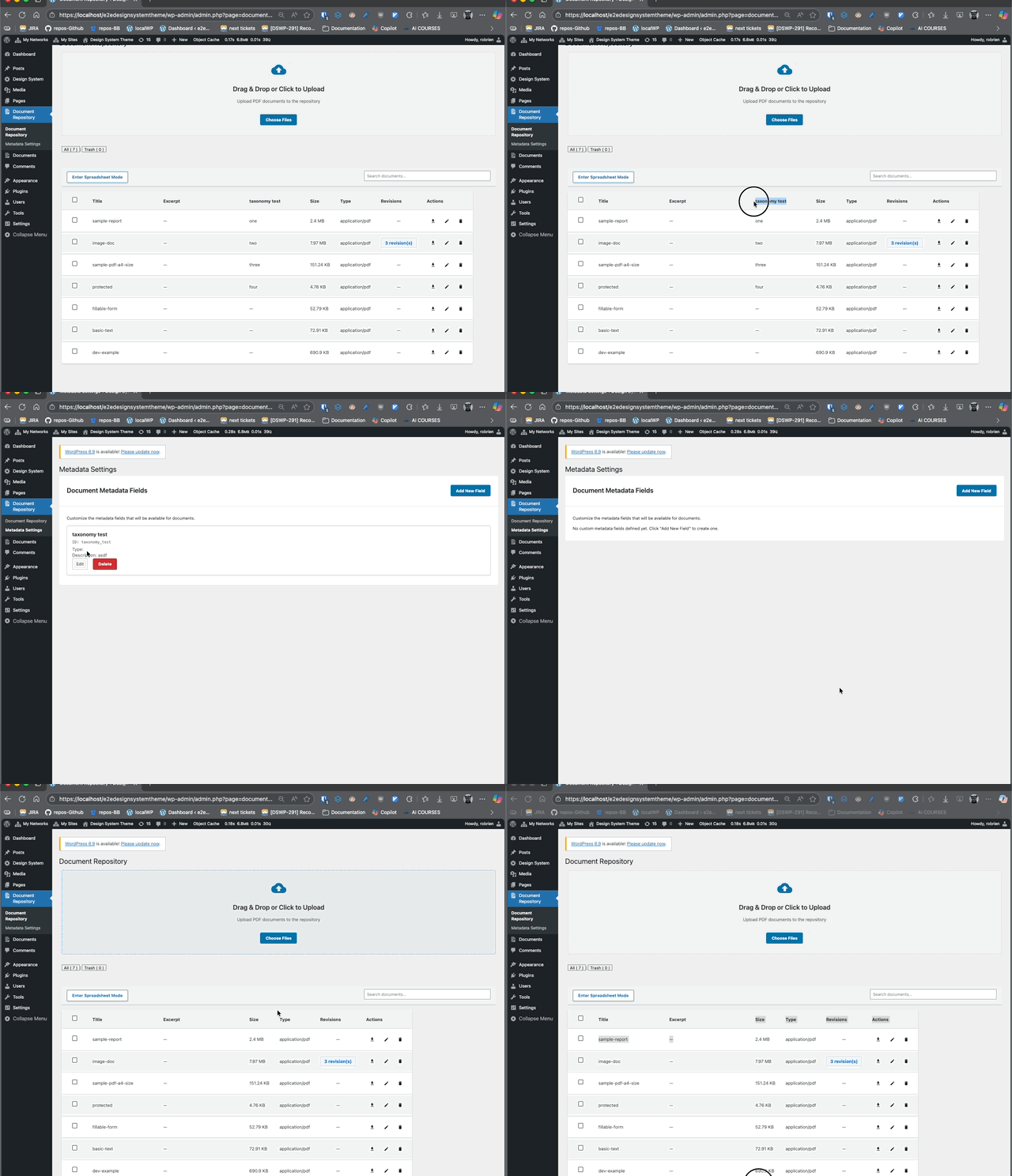
- The field (column) disappears from both standard and spreadsheet views.
- All stored values for that field are removed.
Using metadata in the repository
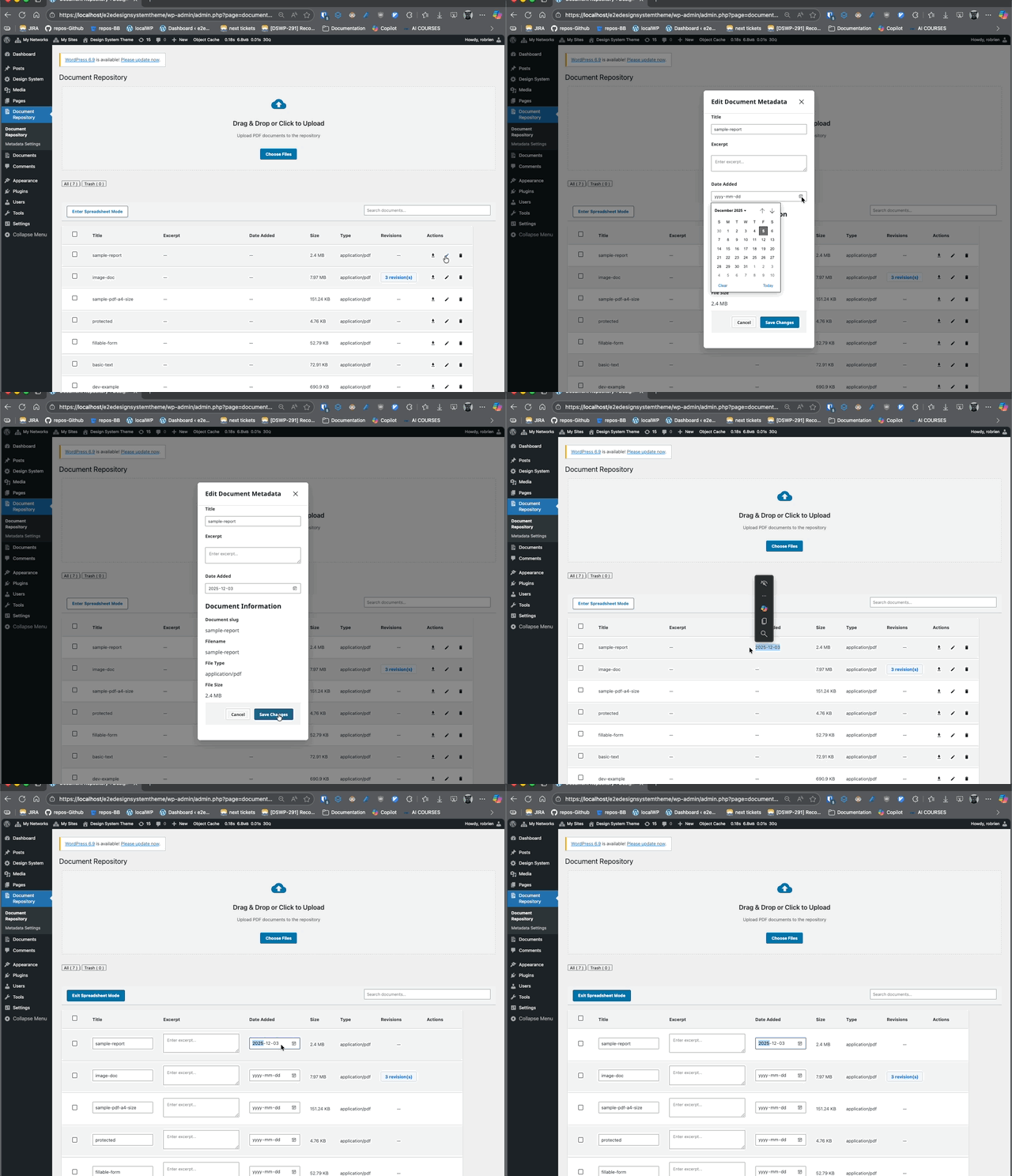
- New fields appear as columns in both views.
- Enter or edit values per document in standard or spreadsheet mode.
- Search by:
- Text: match text strings.
- Date: filter by date.
- Taxonomy: filter by selected terms.
Tips & best practices
- Create only fields you will actively search or sort by; too many fields can impact performance and require horizontal scrolling.
- Plan Taxonomy terms carefully to keep filters meaningful.
- If you need a different Field Type, delete the old field and create a new one with the desired type.
Troubleshooting
- Fields not showing in repository views: Refresh the page and clear any caching plugins/CDN. Confirm the field exists in Metadata Settings and you have permission to view it.
- New field appears but values are blank: This is expected—new fields are blank until each document is edited in standard or spreadsheet mode.
- Cannot change Field Type: By design, the type is fixed after creation. Delete and recreate the field with the desired type.
- Taxonomy terms missing or not selectable: Ensure at least one term remains in the Taxonomy field. Edit the field and re-add terms if they were removed.
- Performance issues with many fields: Reduce the number of fields or limit very large term lists to avoid wide tables and heavy queries.
Quick reference
- Required: Field Label; Taxonomy Terms (for Taxonomy type).
- Field Type: Chosen once; cannot be changed later.
- Deletion: Permanent and removes all values.
- Who can manage: Admins or users with edit capability.
- Location: Document Repository → Metadata Settings.